

xCloud Refund Policy
Updated September 29, 2026 · 8 min read
This guide explains when an xCloud purchase may qualify for a refund, how unused service value becomes Account Credit, and how to request a payout of eligible Refundable credit. It is for xCloud customers who need to delete a service, review credit created after deletion, or return eligible credit to the original payment method.
Refund eligibility at a glance
Refund eligibility depends on the service, the billing term, actual usage, and whether the value is marked Refundable or Non-refundable.
| Service | Refund treatment | Eligibility window |
|---|---|---|
| xCloud Managed and xCloud Provider servers | Pro-rated unused value after eligible usage and processing deductions | Before the end of the paid billing term |
| Self-Managed Hosting / BYOS | Full refund for a new server | Within 14 days of purchase |
| Agentic Stack | Same pro-rated refund treatment as xCloud Managed | Before the end of the paid billing term |
| Reseller / White Label services | Uses the dedicated reseller billing and refund policy | See the reseller-specific policy |
| Activated add-ons | Non-refundable | No refund after activation |
Deleting a service automatically cancels its related subscription; no separate cancellation request is required. Refunds are not automatic: after deleting an eligible service, contact xCloud Support to request the refund. xCloud may review the original payment, service usage, previous credits or refunds, payment disputes, and policy eligibility before approving credit or a payout.
Prerequisites
Before you start, confirm that you have:
- Access to the xCloud team that purchased the service.
- Permission to view billing information and Account Credit.
- The affected service deleted before its applicable eligibility deadline and before requesting its unused eligible value.
- The original payment successfully completed and not already fully refunded or disputed.
- A support ticket requesting the refund after the eligible service has been deleted.
Understand Account Credit
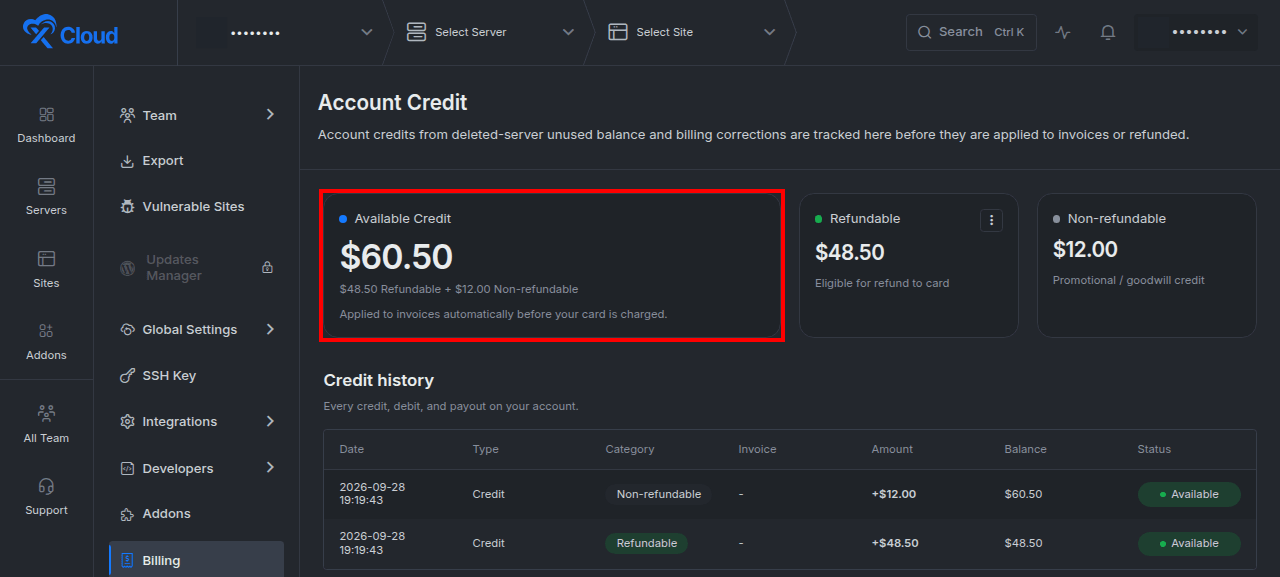
Account Credit is value recorded in the Wallet for the same xCloud team and currency. Eligible credit is applied automatically to future invoices before the card is charged.
The Account Credit page separates the balance into two categories:
| Category | What it means |
|---|---|
| Refundable | Eligible for a reviewed payout to the original payment method, subject to the remaining refundable amount and policy rules. |
| Non-refundable | Promotional, goodwill, bonus, coupon, referral, complimentary, or other credit that can pay eligible xCloud invoices but cannot be withdrawn or paid out. |
Account Credit cannot be transferred, sold, gifted, or moved to another xCloud team. It cannot be used across currencies. Credit already spent, refunded, reversed, disputed, or otherwise returned reduces the remaining refundable balance.
Request a refund after deleting an eligible service
To qualify, delete the paid service before the applicable refund deadline. Deleting the service automatically cancels its related subscription, so no separate cancellation request is needed. Deletion alone does not request a refund: contact xCloud Support after deletion to request the eligible unused value.
Back up your data before deletion. Create, download, or verify a usable backup before deleting a server or service. Deletion can permanently remove hosted sites, databases, files, and associated service data. A backup protects your data but does not change refund eligibility or the refund calculation.
- Delete the affected service before its applicable deadline. Complete the deletion before the end of the paid billing term for an eligible xCloud Managed, xCloud Provider, or Agentic Stack service, or within 14 days of purchase for a new Self-Managed/BYOS server. Reseller and White Label services follow their dedicated policy. The related subscription is cancelled automatically — no separate cancellation action is required.
- Contact xCloud Support to request the refund. Open a support ticket from the team that purchased the deleted service and identify the deleted service and original transaction, so Support can review it against the applicable refund window, usage, and payment history.
- Open Billing and select Account Credit to monitor eligible credit. Use the team that purchased the deleted service, and treat any displayed amount as an estimate until xCloud approves it. The page shows current balances, Credit History, and any recorded credit activity.
- Wait for the review to finish. xCloud may approve, correct, or reject a request affected by usage, prior credits or refunds, duplicate requests, payment disputes, abuse, or service ineligibility. Approved value moves into Credit History and updates the applicable Account Credit balance.
A pending deleted-service credit request can be cancelled while it is awaiting review. The amount remains available to request again unless its eligibility changes.
Request a payout of Refundable Account Credit
A payout returns eligible refundable credit to the original payment source. It is not a transfer to a different card, bank account, xCloud team, or third party.
- Go to Billing → Account Credit, where the page shows Available Credit, Refundable, and Non-refundable summaries.
- Open the three-dot menu on the Refundable card. The Request payout action appears when a refundable balance is available.
- Select Request payout. A dialog shows the available amount, applicable deduction, and expected payout.
- Enter an amount that does not exceed the available refundable balance. The final amount can be lower than Available Credit because only Refundable credit is eligible and previous usage, refunds, pending payouts, or applicable processing fees may reduce it.
- Select Submit request. Pending payout value is excluded from the amount available for another payout request.
- Track the result in Credit History. Payout results can include Completed, Partially completed, Rejected, Failed, or Cancelled.
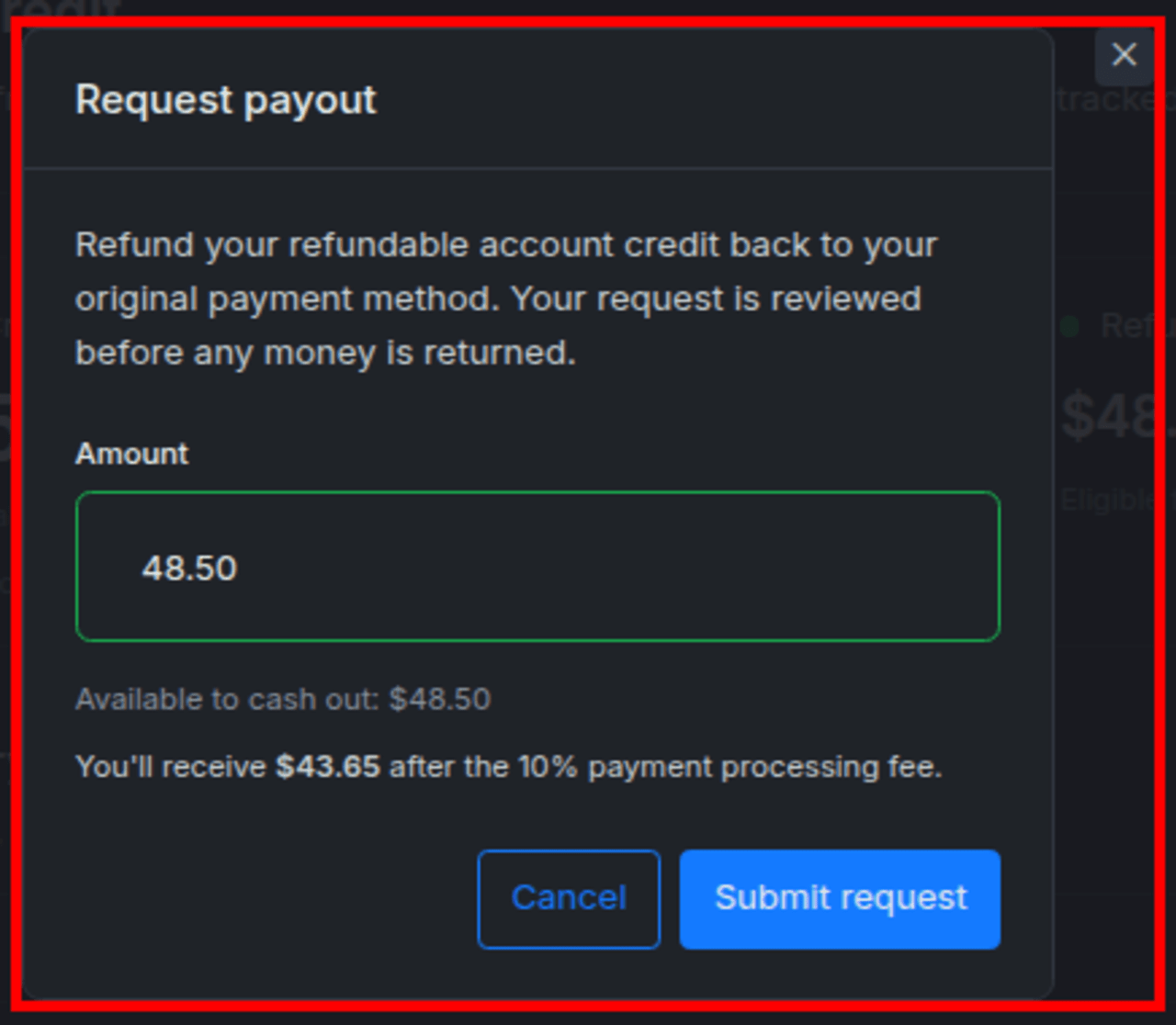
If approved, xCloud submits the payout as a refund against the original charge or charges that funded the refundable credit. Replacing or removing a saved card does not redirect the refund. If the original payment method cannot accept it, contact the original payment provider and xCloud Support for the next available option.
How credits and card payments are refunded
When Account Credit pays part of an invoice, only the remainder is charged to the card. If a later refund is approved, xCloud returns each eligible portion through its original source where possible:
- The card-funded portion is returned against the original card charge.
- The Account-Credit-funded portion is returned to the Wallet.
- Non-refundable credit does not become cash-refundable because it was used on an invoice.
- The same value cannot remain spendable as Account Credit and also be returned as cash or a card refund.
The maximum payout cannot exceed the remaining eligible amount actually paid through the original payment source after previous refunds, used credit, non-refundable credit, usage charges, and disclosed processing deductions are accounted for.
Service-specific refund rules
xCloud Managed and xCloud Provider servers
Unused value may qualify for a pro-rated refund when the server is deleted before the paid billing term ends. The applicable paid service period runs until the service is deactivated or deleted. xCloud charges at least one day of usage where the Terms require that minimum.
Refundable amount = amount paid − used service charge − applicable Stripe processing fee
The xCloud Terms and Conditions specify an applicable Stripe processing fee of up to 10% of the used service charge. The fee is based on the used amount, not the full amount originally paid or the remaining refundable amount. The one-day minimum usage charge also includes the associated Stripe fee.
For yearly or multi-month terms, the calculation starts from the amount actually paid at checkout, including an applied term or first-purchase discount. Eligible server-backup time is calculated on the same pro-rated basis.
Self-Managed Hosting / BYOS
A new Self-Managed/BYOS server is eligible for a full refund within 14 days of purchase. Requests after 14 days and recurring charges after that period are not eligible. Deleting the server cancels the related subscription so it is not charged in the next billing cycle.
Agentic Stack
Agentic Stack follows the same refund rules as xCloud Managed. Unused value may qualify for a pro-rated refund when the Agentic Stack service is deleted before the paid billing term ends. Deleting it automatically cancels the related subscription; contact xCloud Support after deletion to request the refund.
Reseller / White Label services
Reseller and White Label billing is separate from the standard xCloud Account Credit flow. The reseller account owner is responsible for the reseller subscription, xCloud service charges, customer collections, and unpaid customer balances. Customer-facing refunds issued by a reseller do not automatically refund the reseller’s corresponding xCloud charges.
Use the xCloud White Label billing and refund guide for the current reseller subscription and xCloud Managed server rules. Review the amounts and deductions displayed for the reseller account before requesting a refund, because reseller charges and customer collections are handled separately.
Activated add-ons
Activated add-ons are non-refundable. This includes:
- Mailbox
- Mail Delivery
- Site Security PRO
- Cloudflare Enterprise Addon
Review the selected add-on, billing term, and price before activation.
Review time and payment posting
Refund requests must be communicated to xCloud Support and require review. xCloud may request information needed to verify the account, service, usage, and original transaction. Account Credit and payout requests may also require review.
After approval, xCloud submits the refund to the original payment method. The xCloud Terms and Conditions state that approved refunds are processed within 5 to 10 business days. The payment provider controls when the refund appears on the account. All refund calculations are recorded in USD.
Late payments, suspension, and restoration
xCloud retries automatic payments according to the billing schedule and sends payment notices for unresolved balances.
At the end of the third day of the month, servers with an unresolved unpaid balance are suspended and shut down. If the balance remains unpaid and unaddressed, the server may be completely removed.
- Update or replace an expired payment method as soon as possible.
- Pay the outstanding bill before the server is removed.
- After billing details are updated, xCloud may charge the card within 24 hours when the billing account has an adequate balance.
- Paying while a server is suspended can allow restoration after the payment is recognized.
- If a server has already been completely removed, contact xCloud Support. Restoration is not guaranteed.
Verify the result
Use this checklist after requesting credit or a payout:
- The request appears on the correct xCloud team.
- A deleted-service credit shows a review status before it becomes available credit.
- Approved credit appears in Credit History.
- Available Credit equals the visible refundable and non-refundable balances.
- A payout request reduces the balance available for another payout while it is pending.
- The final payout or credit status appears in Credit History.
- The destination remains the original payment source for an approved cash payout.
Troubleshooting
| Symptom | Likely cause | Resolution |
|---|---|---|
| No claimable credit appears after deletion | The service is ineligible, the calculation is still processing, or the wrong team is selected | Confirm the purchasing team and service type, then open an xCloud support ticket with the affected service selected. |
| Request payout is unavailable | There is no available Refundable balance, or the balance is already reserved by a pending payout | Check the Refundable card and Credit History for pending activity. |
| The payout amount is lower than Account Credit | Non-refundable credit, service usage, previous refunds, used credit, or an applicable processing deduction is excluded | Compare Refundable credit with the amount and deduction in the payout dialog. |
| A refund has not appeared on the card | The request is still under review, or the payment provider has not posted the submitted refund | Check Credit History first; after approval, allow 5 to 10 business days for processing. |
| A payout is rejected or fails | The original transaction is ineligible, exhausted, disputed, unavailable for refund, or requires more verification | Review the recorded status and contact xCloud Support from the purchasing account. |
| Credit was applied to an invoice unexpectedly | Available Account Credit is applied automatically before the card is charged | Compare the invoice’s Account Credit and card-funded portions in billing history. |
| A paid service remains unavailable | Payment has not been recognized yet, or the service has reached a terminal enforcement action | Confirm the bill is paid, allow the stated processing time, then contact xCloud Support if the service does not recover. |
Common mistakes
- Treating deletion as an instant cash refund. Deletion automatically cancels the related subscription, but it does not request a refund. After deleting the service before its applicable deadline, contact xCloud Support to request the refund.
- Deleting a service without a usable backup. Refund eligibility does not restore deleted sites, databases, files, or service data.
- Using Available Credit as the payout amount. Available Credit includes both Refundable and Non-refundable value. Only the available Refundable portion can be requested.
- Calculating the processing fee against the wrong amount. The Terms calculate the fee against the used service charge for eligible xCloud Managed and Provider server refunds.
- Expecting a refund on a replacement card. The refund remains tied to the original funding transaction.
- Applying standard billing rules to a reseller account. White Label billing separates xCloud charges from the reseller’s customer collections.
- Requesting the same value twice. Used, refunded, reversed, disputed, or already requested value reduces what remains eligible.
- Assuming every cancellation is refundable. The service type, refund window, activation state, usage, and original payment all affect eligibility.
FAQ
Is all Account Credit refundable?
No. Only credit marked Refundable can be considered for a payout. Promotional and goodwill credit is Non-refundable but can still pay eligible invoices.
Does Account Credit apply automatically?
Yes. Available Account Credit is applied to eligible invoices before the saved card is charged.
Can I send a payout to another card or bank account?
No. An approved payout is submitted against the original payment source that funded the refundable credit.
Does deleting a server complete the refund?
No. Deleting the service automatically cancels its related subscription, but it does not request a refund. After deleting the service before its applicable eligibility deadline, contact xCloud Support to request the refund. xCloud must approve the request before eligible value is returned or made available as Account Credit.
Can I cancel a deleted-service credit request?
Yes, while it is awaiting review. The amount can be requested again unless eligibility changes.
Where can I see credit and payout activity?
Go to Billing → Account Credit and review Credit History. The ledger records credits, debits, payouts, balances, and statuses.
How is the processing fee calculated?
For eligible xCloud Managed and Provider server refunds, the Terms specify an applicable Stripe fee of up to 10% of the used service charge. It is not calculated against the full original payment or the remaining refundable amount.
How long does an approved refund take?
The Terms state that approved refunds are processed within 5 to 10 business days and returned to the original payment method. Review time before approval is separate from the payment provider’s posting time.
Related resources
- Open an xCloud support ticket
- xCloud White Label billing and refund policy
- xCloud Terms and Conditions
If you have any questions about the refund policy, contact our support team or email us at [email protected].