

My Account/Profile
Updated September 27, 2026 · 4 min read
In xCloud, once you sign up for your account you will get your own profile ‘My Account’ where you get to tailor your xCloud identity by setting your Name, Email, Contact Number, & Time Zone. Plus, you can set your own Avatar or Icon for your profile.
Access My Profile
From your xCloud Dashboard, navigate to your team from the top right corner. By default, you will have a personal team with the name you signed up for. Click on it and navigate to ‘My Profile.’
Set General Info In My Account
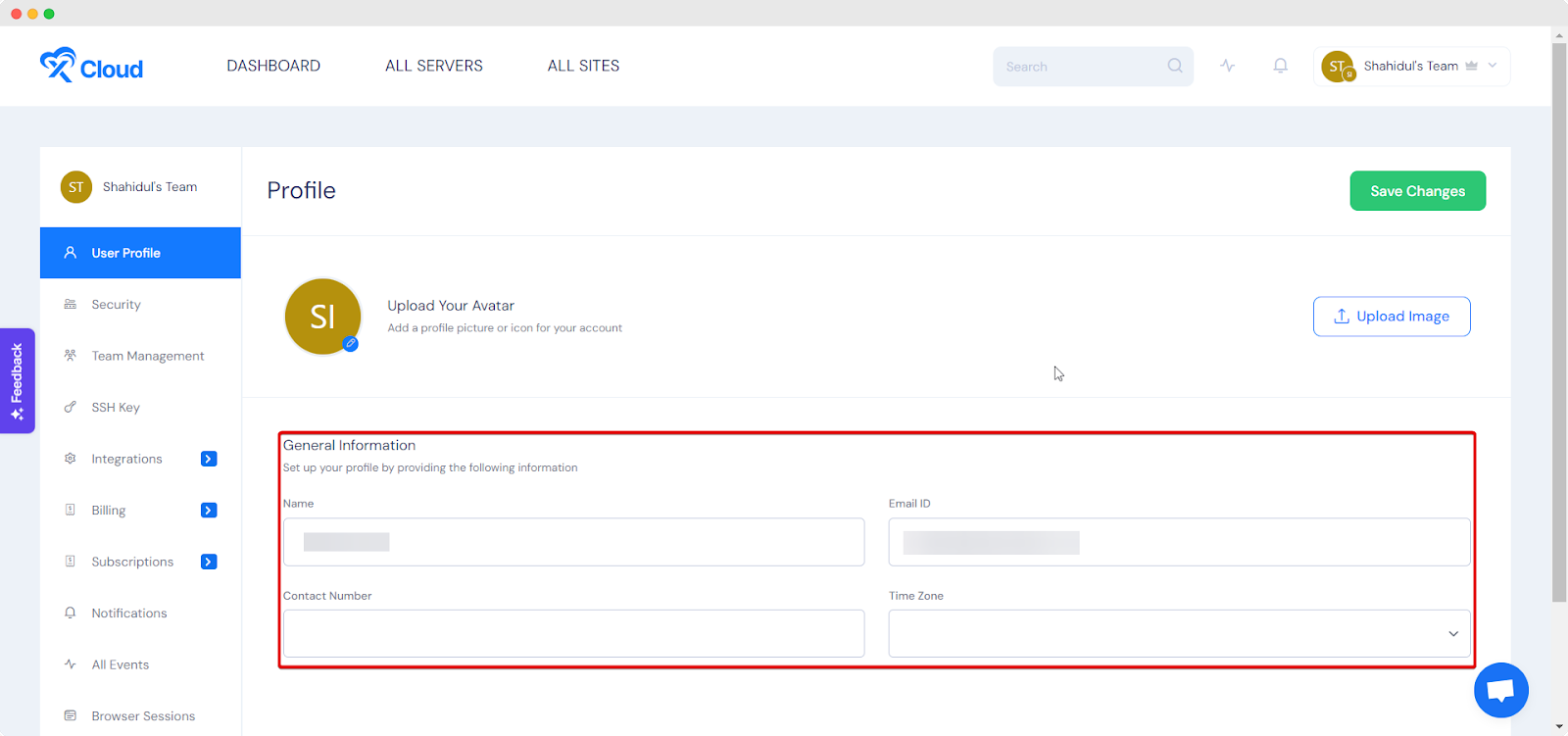
In the ‘Profile’ section, you can set your name, contact number, and time zone. Your email ID will be automatically there. If you need to change your email address now, you can do that as well.
Set Avatar For Your Profile
You can complete your xCloud identity by setting up an Avatar for your profile. To do so, simply click on ‘Upload Image’, choose any image or icon as your preferred avatar, and click on ‘Save Changes.’
Sign in with Google or GitHub
You can sign in to xCloud with a Google or GitHub account instead of a password.
-
Open the xCloud sign-in page and select Continue with Google or Continue with GitHub, then approve the identity request with the provider. xCloud asks the provider for identity information only; a verified provider email is required.
Expected result: xCloud returns you to the dashboard. If the provider identity is already linked, it signs in to the linked xCloud account.
-
If your verified provider email already belongs to an xCloud account, use the social option on the sign-in page rather than creating a second account. xCloud links the provider identity to the matching standard xCloud account and signs you in. The automatic match applies only to standard xCloud accounts with the same verified email; white-label and enterprise identities are kept separate.
Expected result: You enter the existing account, and the provider appears under Settings → Authentication → Social logins.
-
If the provider cannot supply a verified email, return to the sign-in page and use your xCloud email address and password.
Expected result: You can still access the account without creating an unverified social link.
Two-factor authentication still applies: a social sign-in to an account with two-factor authentication enabled continues to the two-factor challenge.
Review or unlink connected accounts
- In the xCloud dashboard, open Settings → Authentication.
- Find Social logins. Each linked provider appears with its masked account identifier and an Unlink button.
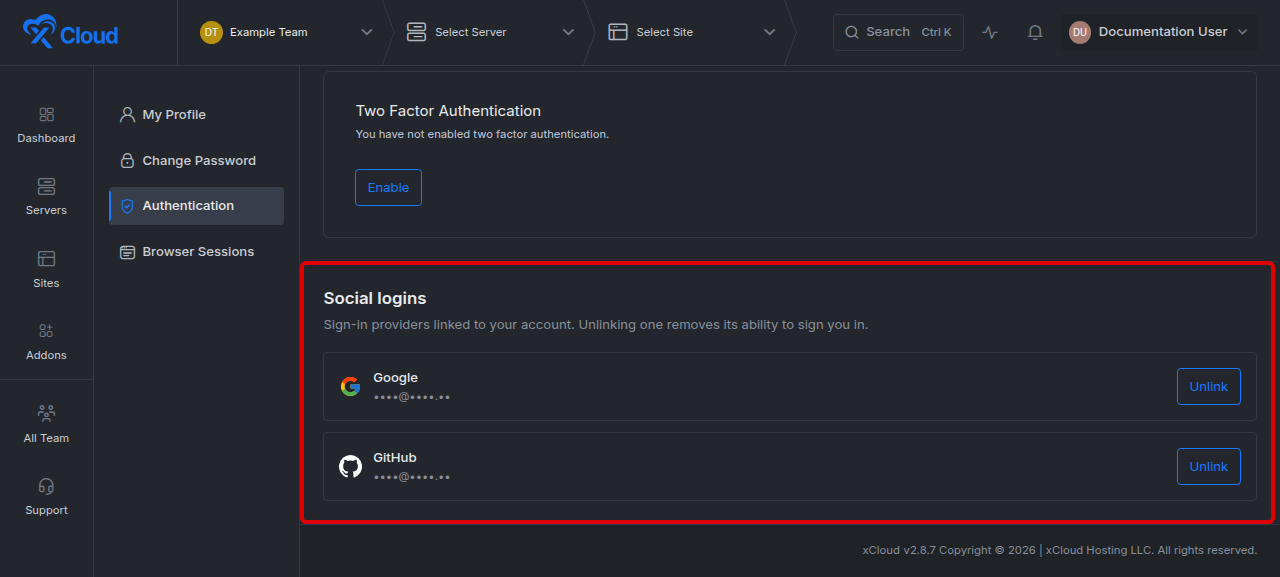
Expected result: You can see which providers are currently allowed to sign in to the account.
-
To remove a provider, select Unlink next to it and confirm the action when prompted. Unlinking removes that provider’s ability to sign in. It does not delete the xCloud account.
Expected result: The provider disappears from the list, and xCloud confirms that the social account was unlinked.
Lockout protection: If a social provider is your last usable sign-in method, set an xCloud password before unlinking it. xCloud blocks removal of the final provider when no usable password exists.
Social sign-in troubleshooting
| Symptom | Likely cause | Fix |
|---|---|---|
| Google or GitHub sign-in cannot continue | The provider did not return a verified email | Sign in with your xCloud email and password, then verify the provider email before trying again |
| Registration says an account with the email already exists | The verified provider email matches an existing xCloud account | Return to the sign-in page and use the provider there; do not create a duplicate account |
| xCloud refuses to unlink the last provider | The account has no usable password | Set a password first, then return to Settings → Authentication and unlink the provider |
Frequently asked questions
Does social sign-in replace two-factor authentication?
No. If two-factor authentication is enabled for the xCloud account, the two-factor challenge still appears after Google or GitHub verifies the identity.
Does unlinking Google or GitHub delete my xCloud account?
No. Unlinking removes only that provider’s ability to sign in. Your account and services remain in xCloud.
Next steps
- Buying several products at once, and checking the invoice afterwards, is covered in How Pricing Plans and Billing Work in xCloud.
- Social sign-in, connected-account management and unified checkout arrived in xCloud v2.7.3.
- Lost your authenticator device? See Two-Factor Authentication: Set It Up, and Recover Access If You Lose Your Device for recovery codes and the support path.
If you cannot get back into your account, feel free to reach out to our support team.