

How to Solve Automatic Site Backup Failures in xCloud
Updated September 29, 2026 · 9 min read
This guide helps xCloud site owners and team members diagnose failed, stuck, or missing automatic site backups. You will identify whether the failure occurred during local staging, database export, file archiving, scheduling, or remote upload, correct the relevant setting or resource problem, and verify the fix with a new backup. The workflow applies to local and remote site backups in xCloud v2.8.9. It does not cover a backup that completed successfully but later failed during restore.
Prerequisites
Before you start, confirm that you have:
- Access to the affected site and its Site Backup pages in xCloud.
- Permission to view or edit backup settings.
- The date and time of the failed or missing backup, including your timezone.
- The exact error shown in the failed backup row, if one exists.
- Access to the connected storage provider for remote-backup checks.
- A recent independent recovery point before deleting old data or changing storage.
When to use this guide
Use this runbook when any of these conditions applies:
- A local or remote backup has a Failed status.
- Backup Now starts a backup that never completes.
- An automatic backup does not appear at the expected time.
- A remote provider has free space, but xCloud reports insufficient storage.
- The error mentions a database dump, storage provider, folder, bucket, endpoint, or permissions.
- Old local backups are consuming space or are not removed when expected.
If the backup is present and completed but cannot be restored, do not troubleshoot it as a creation failure. Preserve the backup and contact xCloud Support with the restore error.
Automatic site backup failures: quick diagnosis
| Symptom | Most likely area | First check |
|---|---|---|
| A row shows Database backup failed | Database export | Saved database details, database grants, dump privileges, and unreadable objects |
| A remote backup reports insufficient storage | Server staging space | The server’s available disk space, not only the remote provider quota |
| A remote folder or bucket cannot be found | Provider connection | Provider authorization, destination path, bucket, endpoint, and region |
| No automatic backup appears | Schedule or server-side job | Automatic Backup, frequency, last successful backup, and server availability |
| A backup remains in progress | Active or interrupted job | Wait for the current run, then contact Support if it does not finish |
| Local backup storage keeps growing | Retention or stale files | Backup Retention, previous backups, and server disk usage |
1. Find the failed or missing backup
- Sign in to the xCloud dashboard.
- Open the affected site, then go to Site Backup → Previous Backups.
- Select the Local Backup or Remote Backup tab that matches the failed job.
- Record the complete error, backup type, destination, and failure time before changing settings.
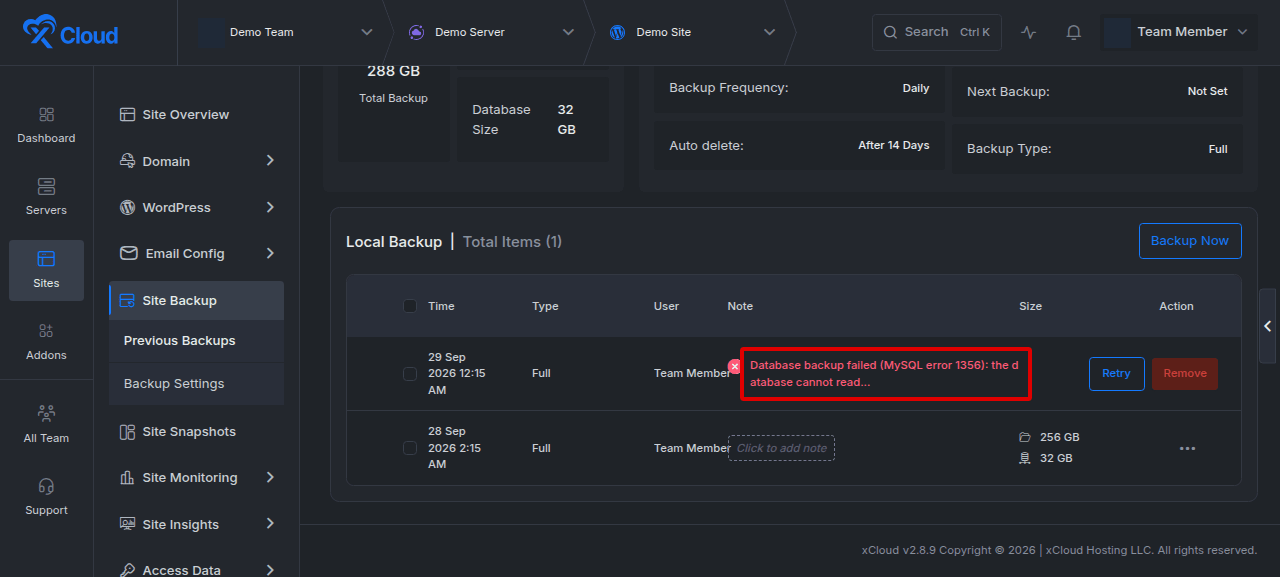
A failed row can expose the stage that stopped. Preserve the message even if a later retry fails differently. Multiple messages can indicate failures at more than one stage.
2. Identify whether the backup is local or remote
A remote backup still needs temporary space on the server. xCloud prepares the database export, file archive, metadata, and upload payload locally before sending the backup to external storage.
| Backup destination | Final storage location | Common failure points |
|---|---|---|
| Local | The site’s server | Disk space, database export, retention, interrupted jobs, or server-side scheduling |
| Remote | A connected storage provider | Server staging space, database export, provider authorization, bucket or folder access, endpoint or region, upload permission, or provider quota |
Do not assume that free space at the remote provider rules out a disk-space failure. The server must have enough working space to stage the backup first.
3. Confirm the automatic-backup settings
- Open the affected site, then go to Site Backup → Backup Settings.
- Open the tab used by the failed job.
- Confirm that Automatic Backup is enabled.
- Verify the selected frequency. xCloud supports 12 Hours, Daily, Weekly, and Monthly schedules.
- Confirm whether the backup includes the database, files, or both.
- Review Backup Retention and Delete After Days.
- Save the settings after any change and wait for the success confirmation.
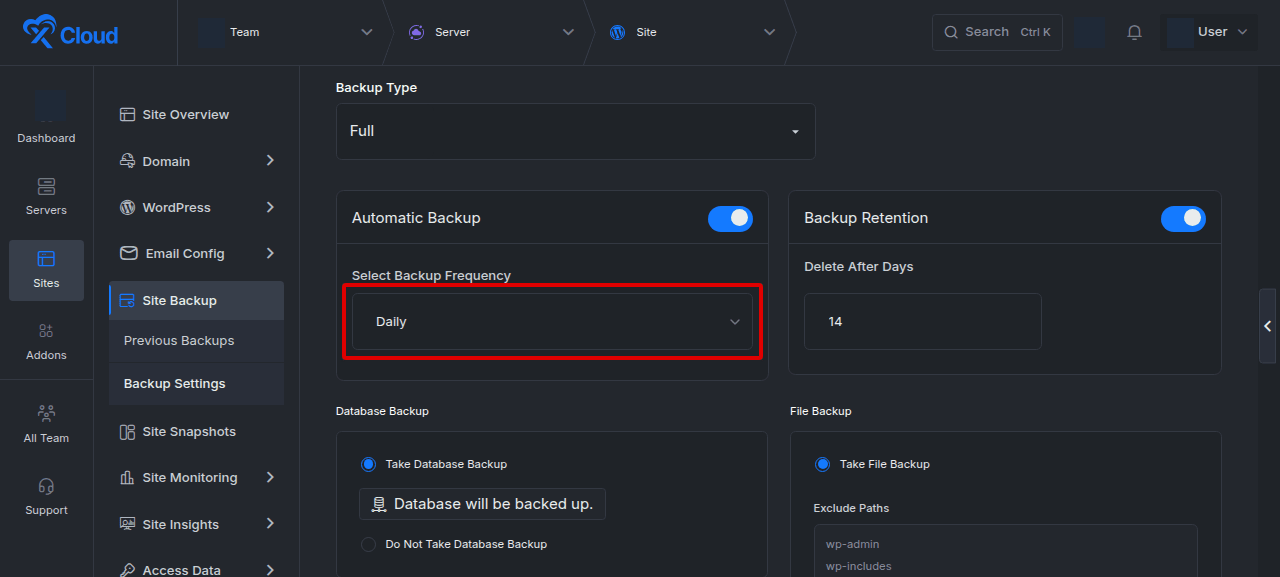
Schedule edge cases
- A monthly schedule naturally has a longer gap between successful rows than a daily schedule.
- A retention period shorter than the backup interval can remove the only completed row before the next scheduled run. Review both values together.
- Changing the frequency does not repair a full disk, a stopped server-side scheduler, a held backup lock, or invalid provider credentials.
- Backup Settings are unavailable for Playground sites.
4. Check server disk space
- Open the server that hosts the affected site.
- Go to Monitoring → Monitoring.
- Review Hard Disk Usage and refresh the monitoring data if it is stale.
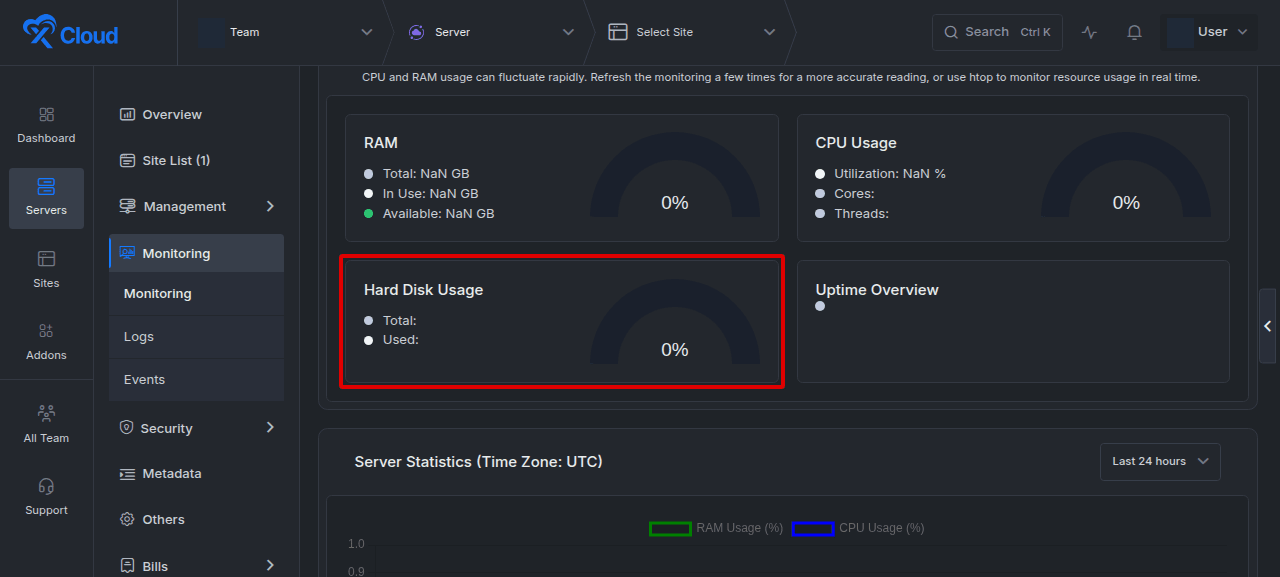
xCloud’s backup diagnostics treat less than 2 GB of free server space as insufficient headroom for a scheduled backup. Some remote-backup configurations require at least 3 GB of external storage capacity, and a real backup may require more temporary space based on the site’s files and database. Use the error’s required and available values when xCloud provides them.
If space is low:
- Review old local backups and the configured retention period.
- Check large site files, caches, logs, temporary files, and database dumps.
- Remove only data you have identified and can safely recreate or recover.
- Recheck disk usage before retrying.
Do not delete unknown server files or directories to make room. Contact xCloud Support or a qualified server administrator if ownership or purpose is unclear.
5. Resolve database backup failures
A database backup failure means xCloud could not create a valid database dump. Current xCloud backup scripts normalize the failure message so credentials and raw connection details are not exposed.
- Confirm that the site has a database and that database backup is enabled.
- Verify the saved database endpoint, database name, username, and password through the site’s supported configuration workflow.
- Confirm that the database user has the required grants and dump privileges for the selected database.
- Check for unreadable tables, views, routines, or other database objects if the message identifies one.
- Retry only after correcting the connection or privilege problem.
A failed or empty database dump is removed rather than retained as a valid backup. Do not treat the presence of a partial archive as proof that the database was protected.
6. Resolve remote storage failures
- Open Site Backup → Backup Settings → Remote Backup.
- Confirm that the provider connection is active and authorized.
- Verify the destination folder, bucket, or path.
- For S3-compatible storage, verify the bucket name, endpoint, region, and credential permissions as a single set.
- Check provider quota, retention or lifecycle rules, and any provider-side outage.
- Save the corrected settings, then create a manual backup.
Common remote errors
| Error or behavior | Cause to check | Resolution |
|---|---|---|
| Failed to fetch folder ID | Folder moved, deleted, renamed, or authorization expired | Reconnect the provider and reselect the destination |
| Bucket or path not found | Wrong destination, endpoint, or region | Correct the complete provider configuration, then save it |
| Access denied | Read-only or incomplete permissions | Grant the connected identity the required list, read, and write access |
| Provider has space but xCloud reports low storage | Insufficient server staging space | Free safe server space before testing the provider again |
| Upload starts but does not complete | Network, provider API, quota, or large-transfer issue | Preserve the timestamp and error, then check provider status and retry once |
Never paste access keys, secret keys, tokens, or passwords into a support message or screenshot.
7. Resolve a scheduled backup that never appears
An enabled schedule without a recent backup can be caused by a missing or non-executable backup script, a missing schedule entry, a script name that does not match the schedule, a stopped scheduler, low disk headroom, or another run holding the backup lock.
- Confirm the site is provisioned and the server is connected.
- Confirm Automatic Backup and its frequency in Backup Settings.
- Compare the expected interval with the latest completed backup, not only with a settings timestamp.
- Check disk space and whether another backup is still running.
- Run one manual backup to separate a schedule problem from a backup-content problem.
- If the manual backup succeeds but the next scheduled backup does not appear, contact xCloud Support for server-side schedule diagnostics.
Do not repeatedly resave or toggle the schedule as a universal fix. Republishing settings can correct missing backup scripts or schedule wiring, but it does not fix a stopped scheduler, a full disk, a held lock, or an unreachable server.
8. Resolve a stuck backup
- Check whether a backup for the same site and destination is already in progress.
- Allow the active job enough time to process the site’s actual file and database size.
- Do not start repeated manual backups while the first job holds the backup lock.
- Refresh the backup history and server monitoring data.
- If the job remains in progress without new activity, record the start time, destination, backup type, and site size, then contact xCloud Support.
A lock file can remain on disk after a run, but its age alone does not prove that a job is stuck. xCloud distinguishes a lock that is actively held from an old file that no process holds.
9. Review retention and old backup files
- Open Backup Settings for the affected destination.
- Compare Delete After Days with the selected backup frequency.
- Review Previous Backups for rows older than the retention period.
- Check server disk usage after the retention window passes.
- Contact xCloud Support if local files keep growing after automatic backup is disabled or expired rows are removed.
A dashboard row can be removed by retention even when the previous backup completed successfully. A short retention period combined with a long backup interval can therefore make the history appear empty.
10. Retry safely
- Correct one identified cause at a time.
- Go to Site Backup → Previous Backups and choose the correct Local or Remote tab.
- Select Backup Now, then choose the intended full or incremental backup option.
- Keep the page available until the new row shows a terminal status.
- If the retry fails, compare the new error with the original before changing anything else.
Use Retry on a failed row only after correcting the reported cause. Repeated retries can consume additional temporary storage and obscure the first useful error.
Verification
The issue is resolved when all of the following are true:
- The new backup row shows a completed status.
- The row has a current timestamp and a plausible database or file size.
- The backup appears under the intended Local or Remote destination.
- The next automatic backup time or schedule matches the selected frequency.
- Server disk usage remains within a safe range after temporary files are cleaned up.
- For remote storage, the new backup objects exist in the intended bucket or folder.
- A later scheduled run also produces a completed backup without manual intervention.
Do not delete your previous recovery point merely because a new row appears. Confirm that the new backup is complete and retained in the intended destination first.
Limits and escalation
Contact xCloud Support when:
- The server-side scheduler is not running.
- A schedule remains enabled but no job appears after a successful manual backup.
- A backup lock remains actively held.
- A local backup job continues after you disable it.
- Provider settings are correct but uploads repeatedly fail with the same provider or network error.
- xCloud cannot reach the server to diagnose the job.
- You cannot identify which server files are safe to remove.
Include the site identifier, destination type, backup type, failure timestamp with timezone, exact sanitized error, and the troubleshooting steps already completed. Never include passwords, tokens, access keys, or secret keys.
Troubleshooting reference
| Symptom | Cause | Fix | You know it worked when |
|---|---|---|---|
| Database backup failed | Invalid connection details, missing grants, dump privilege problem, or unreadable object | Correct the database configuration and privileges, then retry | A completed row includes the expected database size |
| Not enough storage | Server lacks staging space or destination quota is exhausted | Free safe space or increase capacity | Monitoring shows headroom and the next backup completes |
| Remote folder cannot be found | Destination changed or provider authorization expired | Reconnect and reselect the folder or bucket | xCloud saves the destination and uploads a new backup |
| Backup never runs | Schedule, script, scheduler, connectivity, disk, or lock issue | Verify settings and manual backup, then escalate server-side causes | A later automatic run appears at the expected interval |
| Backup remains in progress | Large job, interrupted process, or held lock | Wait, refresh, and escalate if no progress occurs | The row reaches completed or failed status and the lock is released |
| Old backups remain | Retention is disabled, too long, or a stale job left files | Correct retention and request review of orphaned data | Expired backups are removed and disk use stabilizes |
Common mistakes
- Checking only remote-provider quota and ignoring temporary space on the server.
- Retrying before copying the first error message.
- Treating an empty or partial database dump as a valid backup.
- Changing the schedule when the actual cause is disk space, provider access, or database privileges.
- Using retention shorter than the backup interval without understanding that history can appear empty.
- Running several manual retries while another backup still holds the lock.
- Deleting unknown server files to free space.
- Sharing provider credentials or raw connection details in screenshots or support tickets.
FAQ
Why can a remote backup fail when the provider has plenty of free space?
xCloud stages the database export, file archive, metadata, and upload payload on the server before uploading them. The server can run out of temporary disk space even when the remote destination has ample capacity.
Which automatic backup frequencies are available?
xCloud v2.8.9 supports 12 Hours, Daily, Weekly, and Monthly frequencies for scheduled site backups.
Why is there no completed backup row even though the schedule is enabled?
The scheduled job may not have run, may still be running, may have failed before a valid backup record was created, or the completed row may already have been removed by retention. Check the frequency, latest backup history, server disk space, and active job state.
Should I disable and re-enable automatic backups to repair the schedule?
Only after you have ruled out disk, database, provider, connectivity, scheduler, and active-lock problems. Saving settings can repair missing schedule assets, but it is not a fix for every cause.
Can I use a remote backup to avoid local disk requirements?
No. Remote backups still require temporary server space while xCloud creates the export and archive before upload.
Are backups available for Playground sites?
Backup Settings are not available in Playground. Provision the site on an eligible server before configuring site backups.