

How to Manage Global Site Backup Settings in xCloud
Updated September 25, 2026 · 6 min read
The global site backup page lets a team administrator configure one remote or local backup policy and apply it to eligible sites across the team. Use it to see which sites have backups, filter the fleet by backup state, review each site’s last successful backup, and update multiple sites without opening them one at a time.
Prerequisites
- You are a team administrator with permission to access global backup settings.
- Each site you want to manage is provisioned and supports site backups.
- For remote backups, you have connected an object storage provider to the team.
- You have confirmed whether each site needs file backups, database backups, or both.
How eligibility works
The overview lists provisioned sites in the current team that you can access and that support backups. A site without a database can still be eligible for file backups. When xCloud applies settings in bulk, it disables database backup for a site that has no database or whose site type does not support database backups. It also disables file backup for a site type that does not support file backups.
New global remote and local forms select both Take Database Backup and Take File Backup by default. Review these selections before saving. At least one of the two must remain enabled.
Step 1: Open the global site backup page
In the xCloud dashboard, open Team settings → Global Settings → Site Backup.
Expected result: The Site Backup Settings page shows three summary cards:Backup Eligible Sites,Sites with Backup Configured, and Sites without Backup.
Step 2: Choose remote or local backup settings
Select Remote Backup to send backups to a connected storage provider, or select Local Backup to keep backups on the site’s server.
| View | What it configures | Important requirement |
|---|---|---|
| Remote Backup | Backups stored with the selected object storage provider | Select a connected bucket |
| Local Backup | Backups stored on the site’s server | Keep enough free server disk space |
Expected result: The settings form changes to the selected backup destination.
Step 3: Configure the backup policy
Set the options for the selected destination, then select Save Settings.
| Setting | What it controls |
|---|---|
| Backup Type | Creates full or incremental backups |
| Bucket | Selects the object storage destination for remote backups |
| Automatic Backup | Runs backups on the selected schedule |
| Backup Frequency | Runs every 12 hours, daily, weekly, or monthly |
| Backup Retention | Deletes backups after the configured number of days |
| Delete After Days | Sets the retention period when Backup Retention is enabled |
| Database Backup | Includes or excludes the site’s database |
| File Backup | Includes or excludes site files |
| Exclude Paths | Omits listed files or directories from file backups |
The current interface calls automatic cleanup Backup Retention. This replaces the former Automatic Delete label.
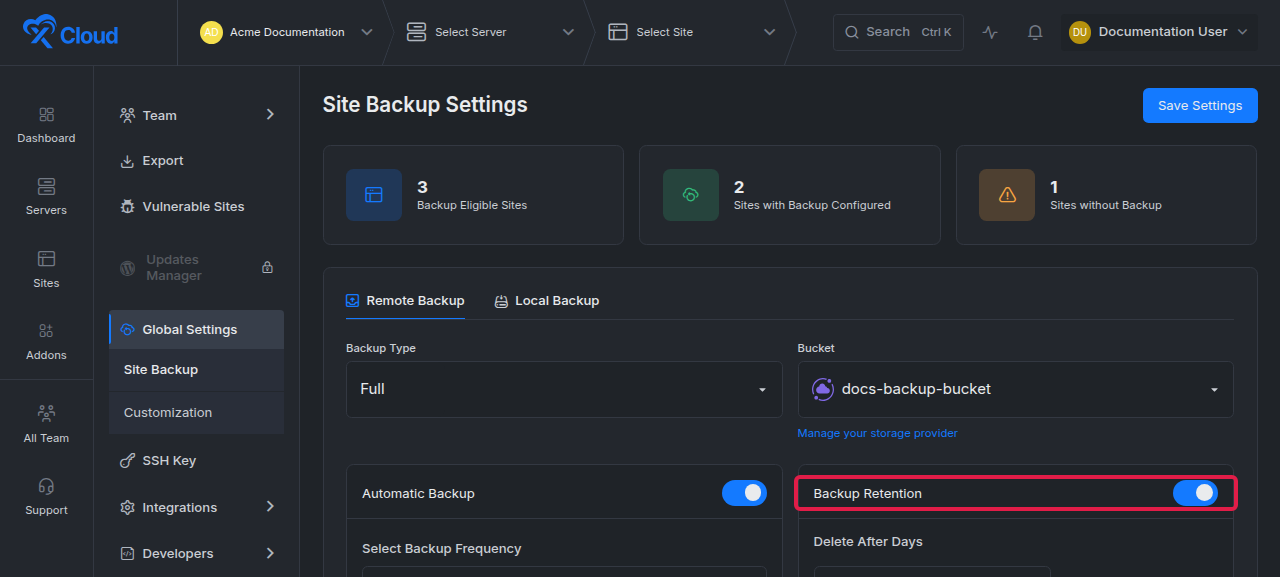
Expected result: xCloud confirms that the team backup settings were updated. The saved policy is then available to apply to eligible sites.
Step 4: Review the Backup Overview
Scroll to Backup Overview. Each row identifies the site and server, backup type, last successful backup, automatic-backup status, and a management action.
Use the tabs to narrow the list:
- All Sites shows every eligible site.
- Remote Backup shows sites with a remote backup configuration and storage provider.
- Local Backup shows sites with an active automatic local backup configuration.
- No Backup Configured shows sites without backup settings.
Use Backup Type to filter by full or incremental backups. Use Backup Status to show sites where automatic backup is enabled, disabled, or not configured. Use Sort to order sites by creation date, last modification, or last successful backup.
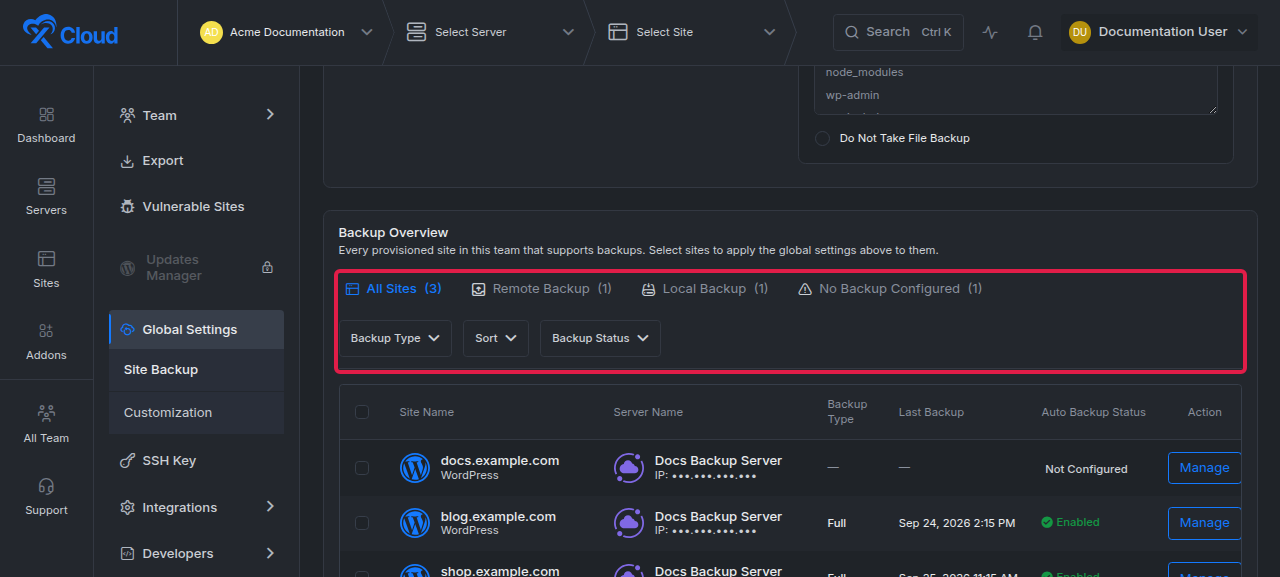
Expected result: The table updates to match the selected tab, filters, and sort order. A dash in Last Backup means xCloud has no completed backup date to show for that site.
Step 5: Apply the policy to sites
Select the checkbox beside each target site, then use the bulk apply action for the currently selected Remote Backup or Local Backup policy.
Before applying the policy, confirm the destination, schedule, retention period, database selection, file selection, and excluded paths. Remote settings cannot be applied until the global remote policy has a valid storage provider.
Expected result: xCloud queues the backup-setting update for the selected sites. Reopen or refresh the overview after processing to confirm each site’s backup type and automatic-backup status.
Switching from full to incremental backups
Changing Backup Type from full to incremental changes the backup chain used by the selected sites. xCloud cleans up orphaned full-backup data left by this switch. After applying the change, create or wait for the next backup and confirm that Last Backup shows a completed run before relying on the new incremental schedule.
Verify the global backup configuration
Confirm all of the following:
- The Sites with Backup Configured count reflects the sites you updated.
- The target sites appear under the expected Remote Backup or Local Backup tab.
- Auto Backup Status matches the saved setting.
- Backup Type shows the intended full or incremental policy.
- Last Backup displays a date after a backup completes.
Troubleshooting
| Symptom | Likely cause | Fix |
|---|---|---|
| A site does not appear in Backup Overview | The site is not provisioned, does not support backups, belongs to another team, or is outside your access scope | Confirm the site is provisioned in the current team and that your role can access it |
| Remote settings cannot be saved or applied | No storage provider or bucket is selected | Connect a storage provider, return to Remote Backup, and select its bucket |
| xCloud warns that at least one backup type must be enabled | Both database and file backup are disabled | Enable Take Database Backup,Take File Backup, or both |
| A database-less site does not receive database backup settings | xCloud disables database backup when the site has no supported database | Keep file backup enabled; add a supported database only if the application requires one |
| A site appears under Local Backup but not Remote Backup | It has active local backup settings but no remote setting with a storage provider | Configure and apply the remote policy separately |
| Last Backup shows a dash | No completed backup is recorded for the site | Run or wait for a backup, then use the site backup troubleshooting guide if it fails |
Common mistakes
- Treating Save Settings as a fleet-wide apply action. Save the global policy first, then select the target sites in Backup Overview and apply it.
- Using Local Backup as the only recovery copy. A local backup shares the server’s failure domain. Use remote storage when you need a copy outside the server.
- Leaving database backup enabled for a site without a database. xCloud ignores that selection for ineligible sites, but reviewing the scope keeps the policy clear.
- Changing to incremental backups without verifying the next completed run. Check Last Backup after the switch so you know the new chain is usable.
- Confusing retention with the backup schedule. Backup Frequency creates backups; Backup Retention removes backups after the specified number of days.
Frequently asked questions
Does No Backup Configured mean the site is ineligible?
No. It means the eligible site has no backup settings. Ineligible or unprovisioned sites do not appear in the overview.
Why can the Local Backup count differ from Sites with Backup Configured?
Sites with Backup Configured counts any site with backup settings. The Local Backup tab counts sites with an active automatic local backup configuration, so the numbers can differ.
Can I configure one site instead of the whole team?
Yes. Use the site backups guide to configure and run backups for one site.
What happened to the Automatic Delete setting?
It was renamed. The toggle that removes old backups after a set number of days is now called Backup Retention, with the period set in Delete After Days. The behaviour is the same; only the label changed.
Related guides
- Site backups in xCloud
- Incremental backups in xCloud
- Troubleshoot site backup failures
- Restore a backup to another site
- xCloud v2.7.5 changelog for the Backup Retention label and database/file defaults
- xCloud v2.7.7 changelog for full-to-incremental cleanup
- xCloud v2.8.4 changelog for Backup Overview filters and last-backup visibility
If you run into any issues with global backup settings, feel free to reach out to our support team for help.