

How Pricing Plans And Billing Works In xCloud
Updated September 27, 2026 · 10 min read
When a user creates a server in xCloud, the system employs a prepaid billing model. We automatically generate invoices and charge your account’s primary payment method on the first day of each month for all existing servers.
Account Activation and Free Tier Access
New users can start using xCloud with the Free Plan, which allows the creation of one server and up to 10 sites by integrating their preferred cloud providers, such as DigitalOcean (DO), Vultr, or Google Cloud Platform (GCP).
Although the Free Plan does not charge for the xCloud platform itself, a valid credit card must still be added to the account to activate and use the Free Plan server. This ensures billing readiness if the account upgrades to a paid plan or uses paid services.
Some services, such as xCloud Managed Servers and additional premium features, are not accessible under the Free Plan and require an active payment method and paid billing structure.
If your account is already using any paid plan or paid server, you will no longer be eligible to use the Free Plan.
Users can also upgrade their Free Plan server manually at any time.
Billing Workflow
The cost of the server is immediately deducted from the user’s primary payment method upon creation. Unused hours for the server of the first month will be adjusted in the following month, ensuring you pay what you use in the first month only.
Server Billing Workflow Example
If a user purchases a Growing server on January 15th for $50, they will be charged $25 in the next month for the same server. However, removing that particular server will not result in adjustments for other servers.
Server Resize Or Upgrade Billing Example
The billing for resizing a server is pretty straightforward. Suppose, you have a server on the Growing plan which costs $30. After 7 days, you decide to upgrade to the Titanium plan, priced at $100. Since you have already used a portion of the Growing plan, we will deduct that and adjust the unused amount.
In the above scenario, you have $23 unused amount as you have used $7 with the Growing plan in the 7 days. Since you upgrade to the Titanium plan which costs $100, you only pay the rest of the amount. In this case, that would be $100 – $23 = $77.
Server Backup Billing Example
Server Backup pricing will be adjusted accordingly with server resizing or upgrading.
For example, if a user purchases a server on January 15th for $5, they will be charged $2.5 in the next month for the same server. However, removal of that particular server will not result in adjustments for other servers.
Pricing Plans
xCloud offers multiple pricing plans so that users can easily pay for what they need. Here you can check all the pricing plans. For a more detailed understanding, let us have a look below.
Currently, xCloud provides 2 types of services under multiple pricing plans. One is xCloud Managed Hosting and the other is Self-Managed Hosting.
xCloud Managed Hosting
This service offers to elevate your site with xCloud servers. It ensures speed and security, with no hidden charges in the future. This service has different packages where you will be charged monthly based on configuration. Have a look at the plans below to select your needs. Also, you can check the pricing page.
Note: If you have any questions or queries related to the services, please reach out to our support team. We are always here for your help.
Self-Managed Hosting
This service allows you to bring your own server from providers such as Vultr, DigitalOcean, GCP, Linode, Hetzner, Contabo, or other cloud providers and manage it through xCloud.
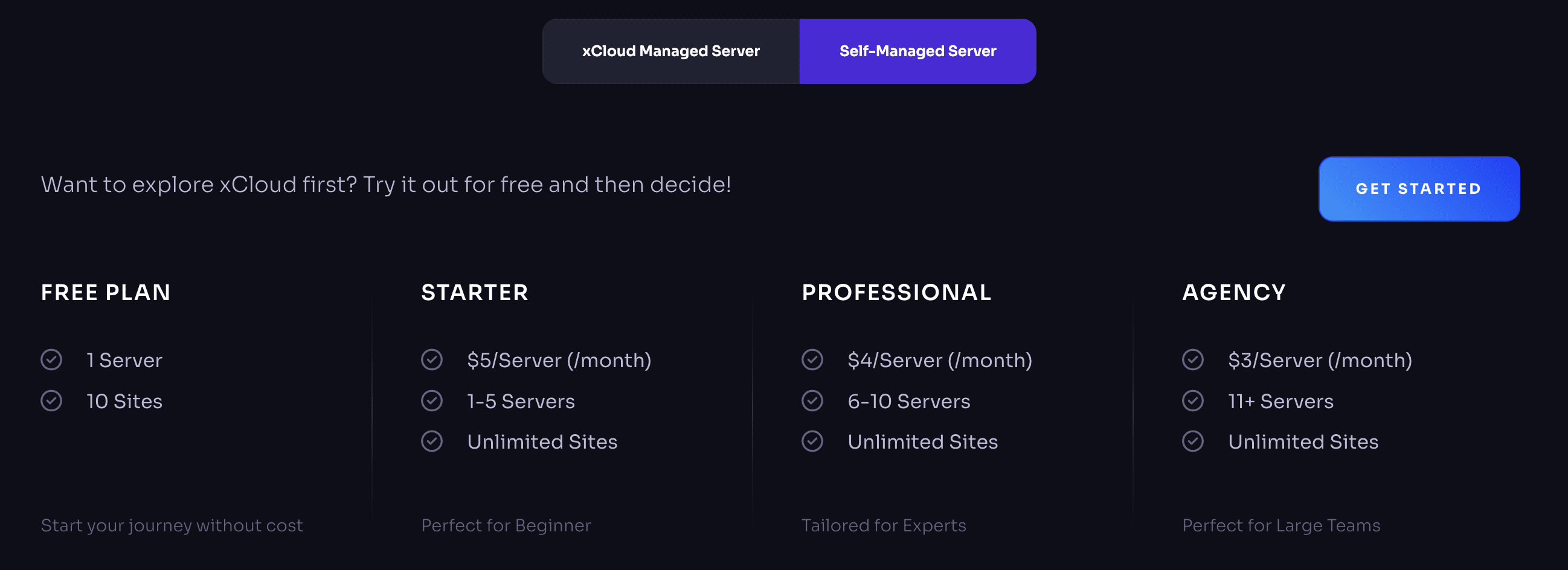
This service uses tier-based pricing with four available plans:
- Free: No cost for 1 server and up to 10 sites (limited features)
- Starter: $5/server/month for 1–5 servers (all features)
- Professional: $4/server/month for 6–10 servers (all features)
- Agency: $3/server/month for 10+ servers (all features)
Users can initially start with the Free Plan, but a credit card must still be added to the account to activate the server and maintain billing readiness.
Once a payment is made for any server under the account, the Free Plan automatically expires, and the account moves permanently to the paid pricing structure.
If an account is already operating under any paid plan, it cannot switch back to or access the Free Plan.
At first, you can start using xCloud for free, with limited features. To unlock more features, when you add a card payment method, then the Free Plan server will be charged $5 according to Starter plan tier-based pricing.
For 1st 5 servers, you have to pay $5 for each. After adding the 6th server, it will be charged $4 according to the Professional plan tier-based pricing. And, if you add 10+ servers, then it will be charged $3 according to the Agency plan tier-based pricing. Have a look at the pricing plans for this service.
Note: If you have any questions or queries related to the services, please reach out to our support team. We are always here for your help.
For more details, visit this page.
Refund Policy
xCloud offers a very transparent refund policy, which includes:
- For LTD & Self Managed Hosting: 14-day refund policy, no questions asked.
- For xCloud Provider & xCloud Managed Servers: the unused amount will be refunded after deducting the Stripe fee.
Refund Policy for xCloud Managed Servers
We use the third-party payment processor ‘Stripe’ to process payments. All transactions are subject to the terms and conditions of the payment processor. If you delete your xCloud Managed Server, you will be charged for the total usage of the server, along with up to 10% Stripe fee based on the used amount. You will be billed for a minimum of one day, regardless of whether you delete the server within an hour or a day of provisioning, including the associated Stripe fee. The remaining unused amount, after deducting the used amount and Stripe fees, will be refunded to your account.
Hosting Addons Refund Policy
Refunds are not available for any hosting addons after the subscription has been completed.
Once you activate or purchase an addon, the payment is final. No refunds will be processed under any condition for addon services.
Please make sure to review your choices before subscribing to any hosting addon.
How to Request a Refund
To request a refund, reach out to our support team with your account email and share the details. Our team will review your case and respond promptly.
Approved refunds are processed within 5–10 business days and returned to your original payment method. All refund amounts are calculated in USD.
Late Payments
Our billing cycle charges accounts on the first day of each month. If your account remains past due, it may be temporarily suspended. If you require additional time to settle your bill, please reach out to our support team for further assistance within the first week of the month.
If you’ve already paid an overdue invoice and access hasn’t come back, see Paid an Overdue Invoice? How Reactivation Works and How Long It Takes — a suspended server needs a separate manual step from support after payment.
We’re here to provide you with reliable cloud services, and our support team is ready to assist you with any billing-related inquiries or concerns you may have.
Pricing Plans
From our official sale page please check our pricing plans of Bring Your Own Servers.
Purchase multiple products with unified checkout
When two or more compatible products are preselected from an xCloud product or sales page, xCloud opens a single cart with a separate card for each item and creates one invoice for all of them. A normal single-product selection continues through the standard configuration wizard.
-
Start from an xCloud product or sales page and select the eligible products you want to buy.
Expected result: The checkout shows every selected item before payment.
-
Review each product card, billing period, quantity and specification. Use + or − to change an allowed quantity. If the page offers Change Specification, use it to revise that item without discarding the rest of the checkout.
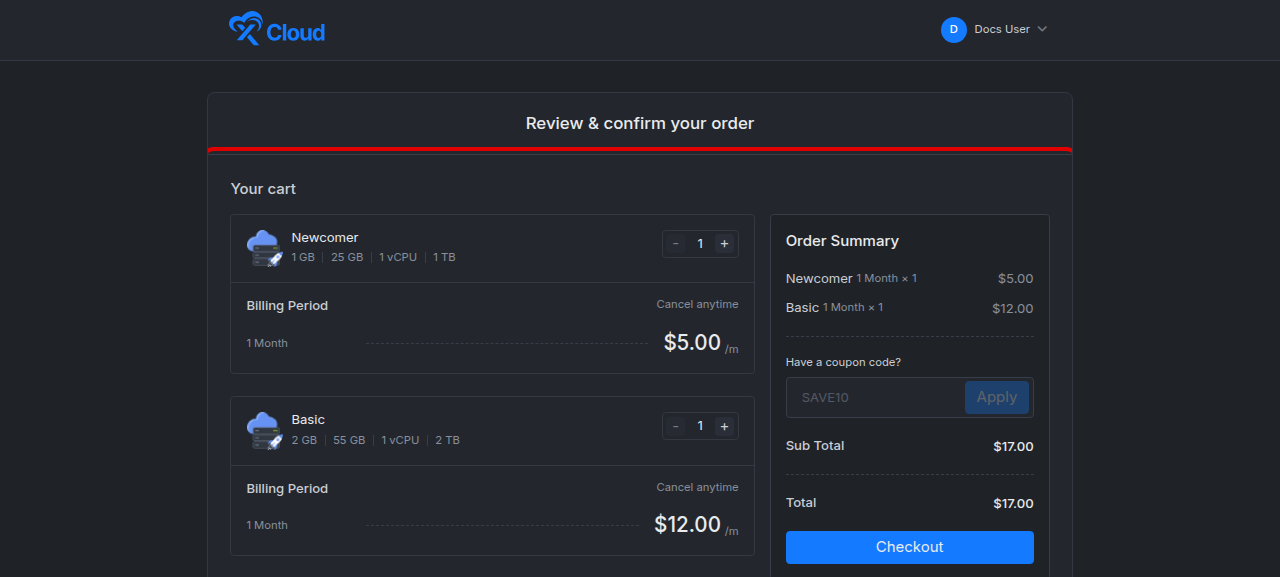
Expected result: The order summary updates to match the selected items and quantities.
-
If you have a coupon, enter it in the coupon field and select Apply. xCloud recalculates eligible products and add-ons. A code that is expired, invalid or not valid for the selected products does not reduce the total.
Expected result: A valid discount appears in the order summary before payment.
-
Select Checkout. If you started as a guest, sign in with Google, GitHub or your xCloud email and password (see My Account). xCloud then associates the pending cart with the team you signed in to.
Expected result: xCloud prepares one invoice for the compatible items and opens the standard invoice payment page.
-
Review the invoice and complete payment with the available payment method.
Expected result: The invoice changes to a paid state after a successful payment. xCloud then processes each purchased line so that every paid service can be fulfilled.
Checkout limits
- Unified multi-item checkout is available on the main xCloud platform. White-label storefronts use their own checkout flow.
- xCloud Managed and Provider server products cannot be mixed in the same checkout.
- Only active, checkout-eligible products can reach invoice creation. Some products require a compatible stack, app, package or account entitlement; xCloud rejects an incompatible combination instead of silently dropping an item.
- A single product selected through the normal product parameter does not display the multi-card cart.
Verify the invoice and purchased services
- Open Billing in the xCloud dashboard and view the team’s invoices.
- Open the invoice created by the checkout. Confirm that it is marked paid and that its line items match the products, quantities and final total you approved. See how to read your xCloud invoice.
- Open Servers, Sites or the relevant add-on area for the purchased service. A server product may continue to the server-creation journey rather than creating a fully configured server automatically; complete any remaining setup shown in the dashboard.
You know the purchase worked when the invoice is paid, all intended line items are present, and each purchased service is available for setup or use in its dashboard area.
Checkout troubleshooting
| Symptom | Likely cause | Fix |
|---|---|---|
| The cart returns to the normal product selector | The selection contains one product, stale products or an incompatible combination | Reopen the product page and select at least two currently eligible, compatible products |
| Checkout says it could not start | Invoice preparation failed or the pending cart is no longer valid | Return to the product page, rebuild the cart and try again; contact support if the error repeats |
| A coupon does not change the total | The code is invalid, expired or restricted from the selected items | Remove the code or use one that applies to every intended eligible item |
| Payment was interrupted | The payment did not reach a successful invoice state | Open Billing, check the invoice status, and resume or retry payment only if it remains unpaid |
| Payment succeeded but a service is not available | Fulfilment has not completed or the product still needs configuration | Refresh the relevant service area, complete any remaining setup, and contact support with the invoice reference if it remains unavailable |
Frequently Asked Questions
What happens to the Free Plan after I add a payment method?
Once a payment method is added and a payment is made for any server under the account, the Free Plan automatically expires.
Can the Free Plan be reactivated after it expires?
No. After a payment method is used and a paid server is created, the Free Plan cannot be reactivated for that account.
My server is stuck provisioning because of a payment issue. What do I do?
If a server’s progress page says it needs an active card, add or update your payment method, then use the Retry button on that page. See Server Stuck Provisioning or Installation Failed for the full troubleshooting steps.
Does adding a payment method immediately remove the Free Plan?
No. Adding a payment method alone does not remove the Free Plan. The Free Plan expires only after a payment is made for any server under the account. At that point, the account permanently transitions to the paid billing structure.
Do I need a credit card to use the Free Plan?
Yes. Even though the Free Plan does not charge for the platform itself, a valid credit card must be added to the account to activate and use the Free Plan server.
Can I use the Free Plan if I already have a paid plan?
No. If your account is already using any paid plan or paid server, the Free Plan cannot be activated or used.
Why do multiple products appear on one invoice?
The unified checkout groups compatible cart items so xCloud can prepare one invoice while retaining a separate fulfilment line for each product.
Can I mix xCloud Managed and Provider server products?
No. Those server service types must be purchased through separate compatible checkouts.