

How to Migrate All Sites Between Two xCloud Servers
Updated September 25, 2026 · 4 min read
With xCloud, you can move all your websites from one xCloud server to another in one run, without touching each site individually. This is the flow for moving between two servers that are both managed by xCloud, for example from a Vultr server to an xCloud Provider server, or to a bigger plan. It is fast, and unlike plugin-based migrations it does not harm the original server or sites.
Moving from another host? Use full server migration to xCloud from any host, or the dedicated Cloudways and RunCloud guides.
Prerequisites
- Add a sudo user to your source server. Root access is not needed because both servers are on xCloud. See sudo users and site users in xCloud.
- Disable Wordfence or any other security plugin on the source sites.
- Keep at least 1 GB of free storage on the destination beyond the total size of the sites.
Step 1: Pick your source and destination server
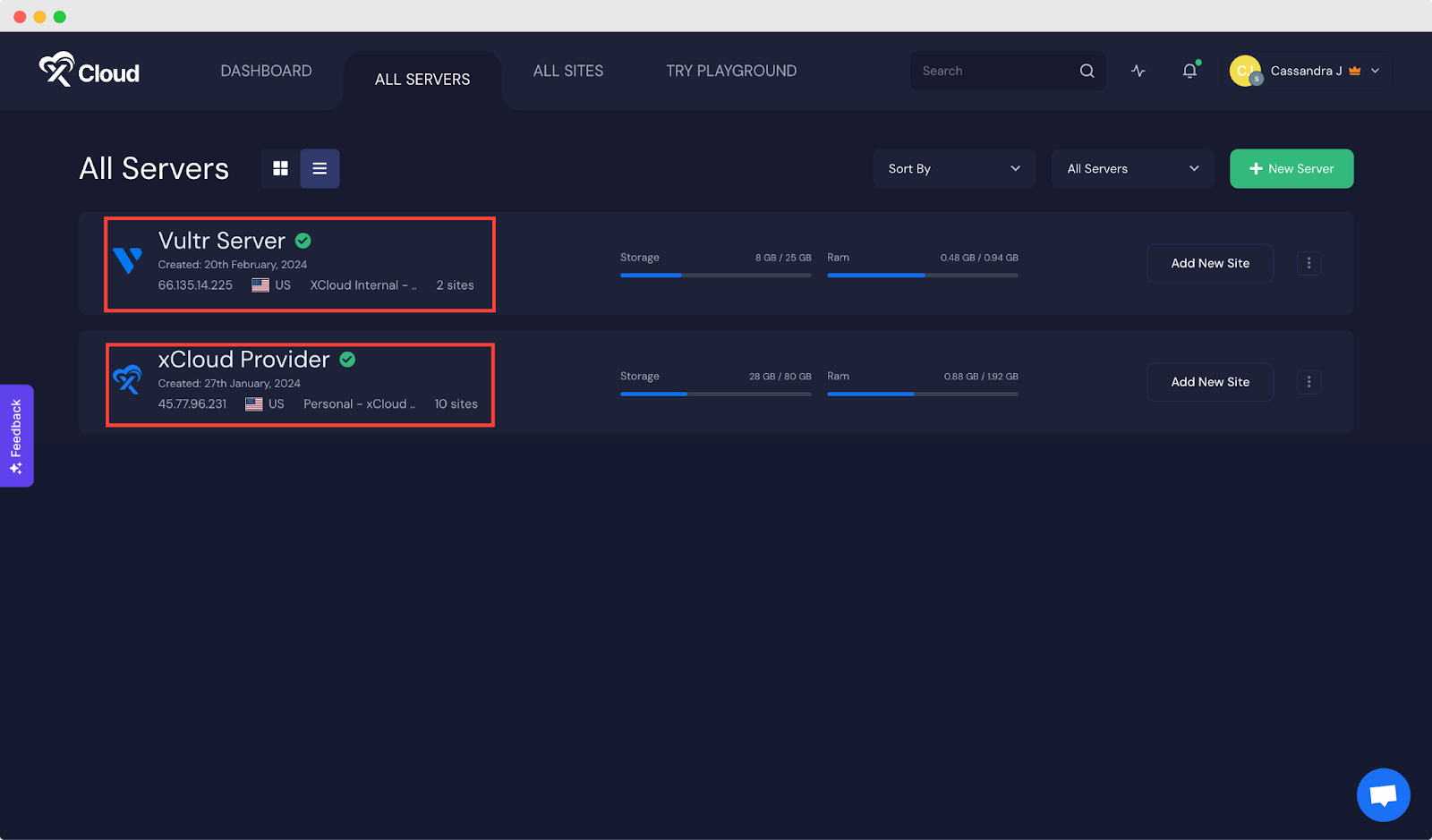
Choose your source server (where the sites are now) and destination server (where they are going). In your xCloud dashboard, open All Servers.
For this guide, we picked a Vultr server as the source and an xCloud Provider server as the destination.
Step 2: Open the destination server
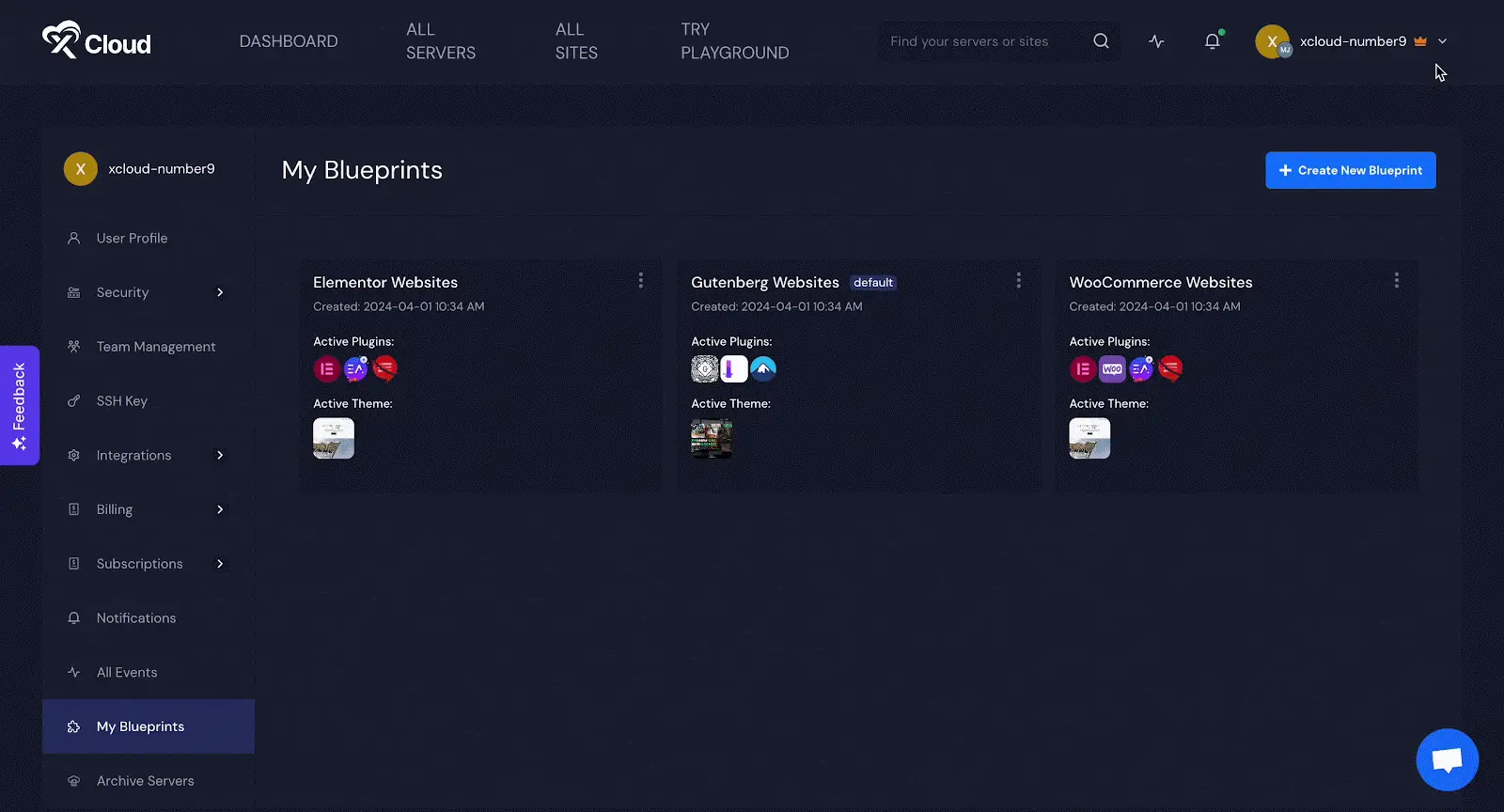
Click the destination server, then New Site at the top right.
Step 3: Choose Migrate Full Server
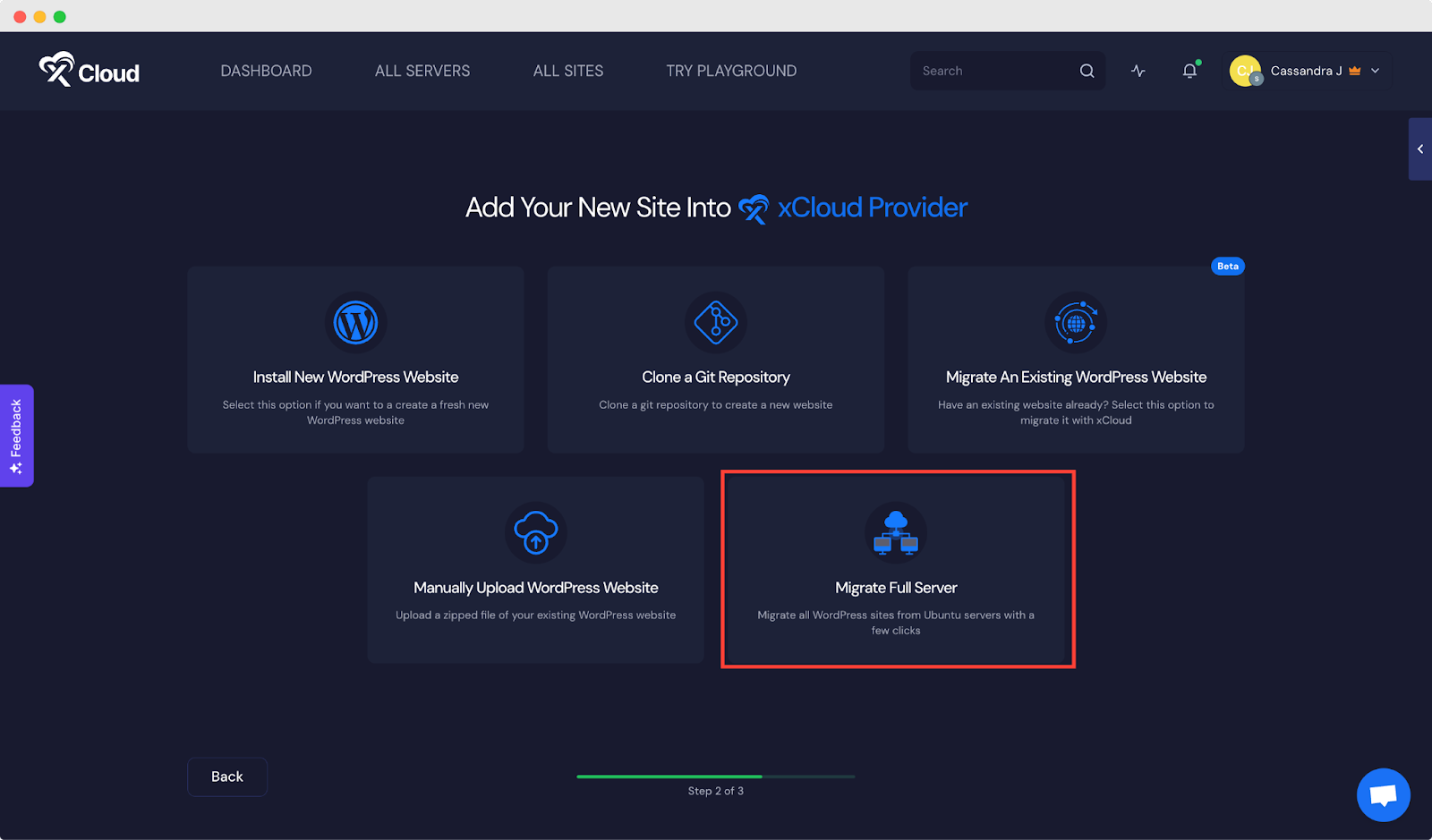
On the resulting page, click Migrate Full Server.
Step 4: Connect the source server
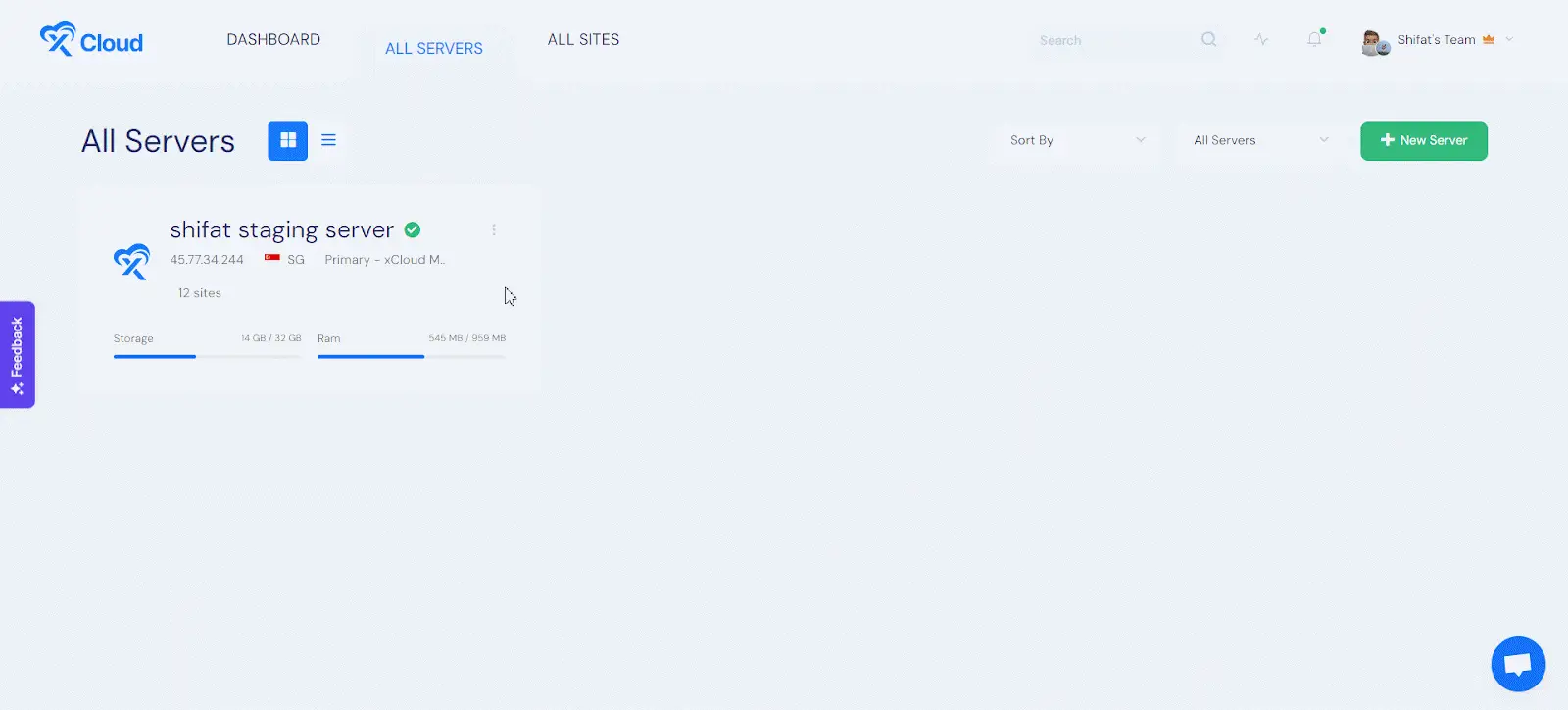
Select the hosting provider as Others, enter the source server’s IP address, and click Next.
If the source relies on public-key authentication, add xCloud’s provided public key to the source server:
- Copy the public key from xCloud’s full server migration screen.
- Access your source server via SSH.
- Paste the public key into the authorized keys.
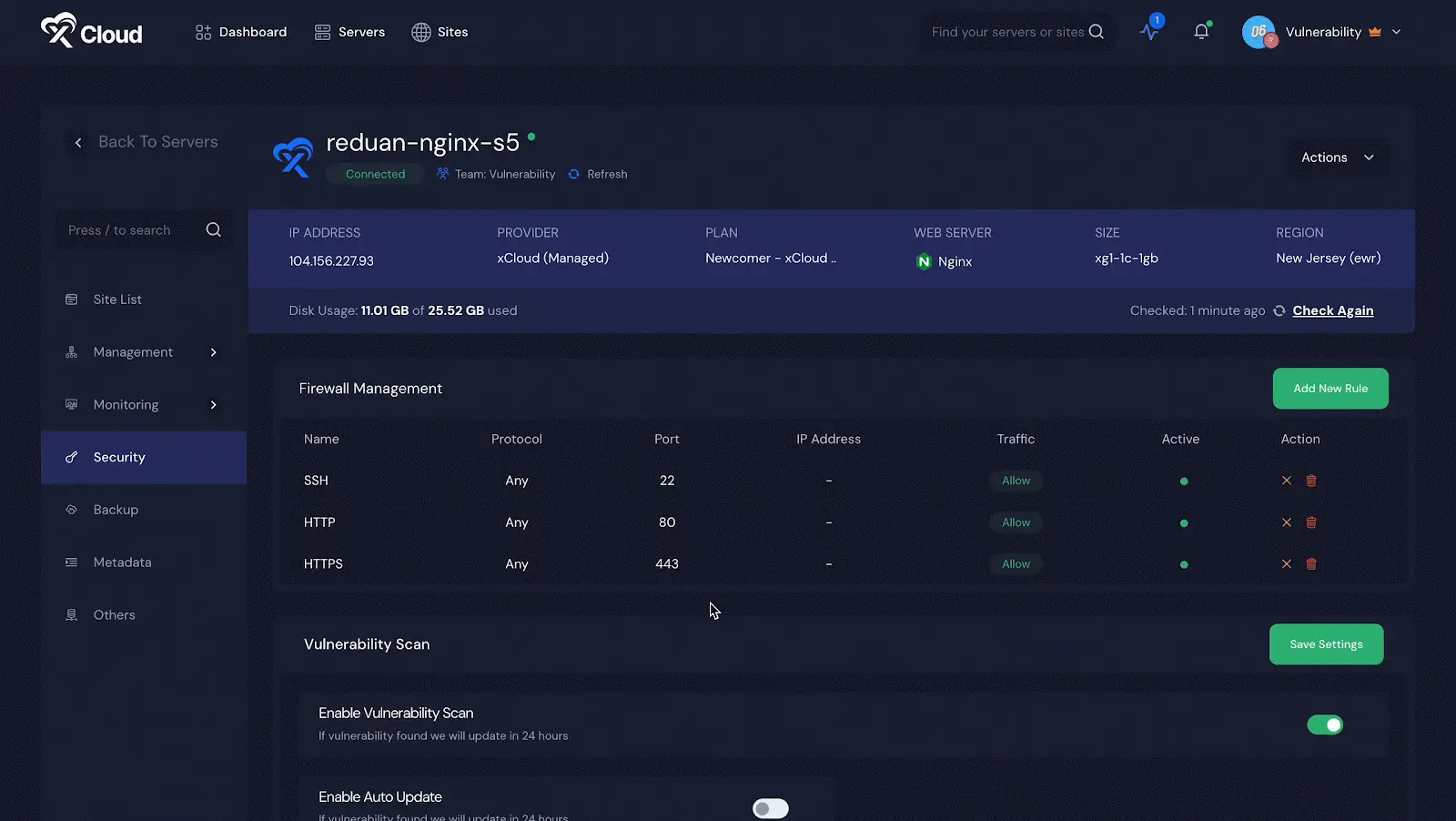
After adding the public key on the source server, switch back to xCloud and click Next.
Expected result: xCloud connects to the source and lists the sites it can migrate.
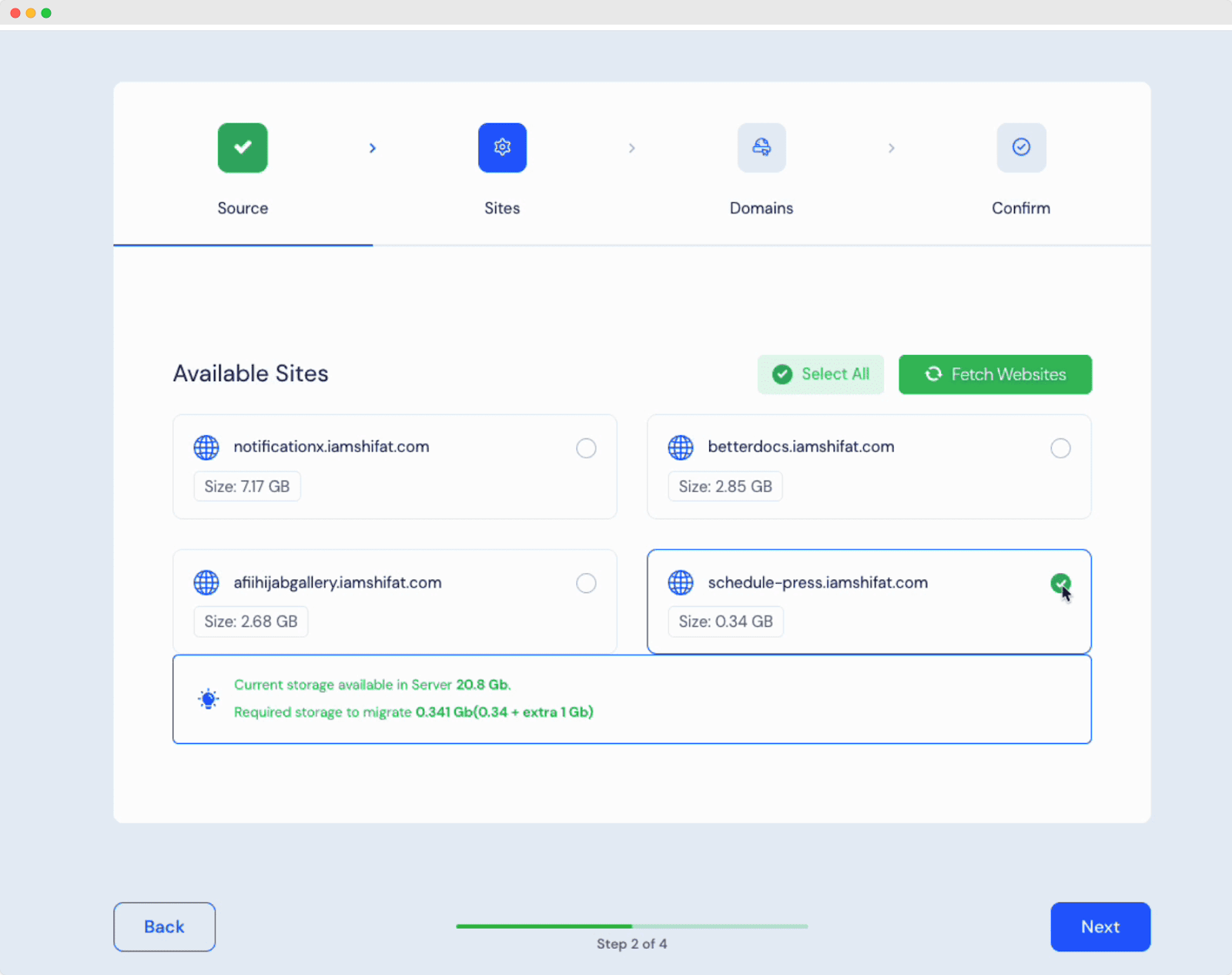
Step 5: Select the site or sites to migrate
Select the sites you want to move, then click Next.
Step 6: Go Live or create staging sites
For each site, choose a staging copy for testing or Go Live to keep the production domain. Toggle your preferred option.
Note: check the storage of your destination server first. We recommend keeping at least 1 GB free.
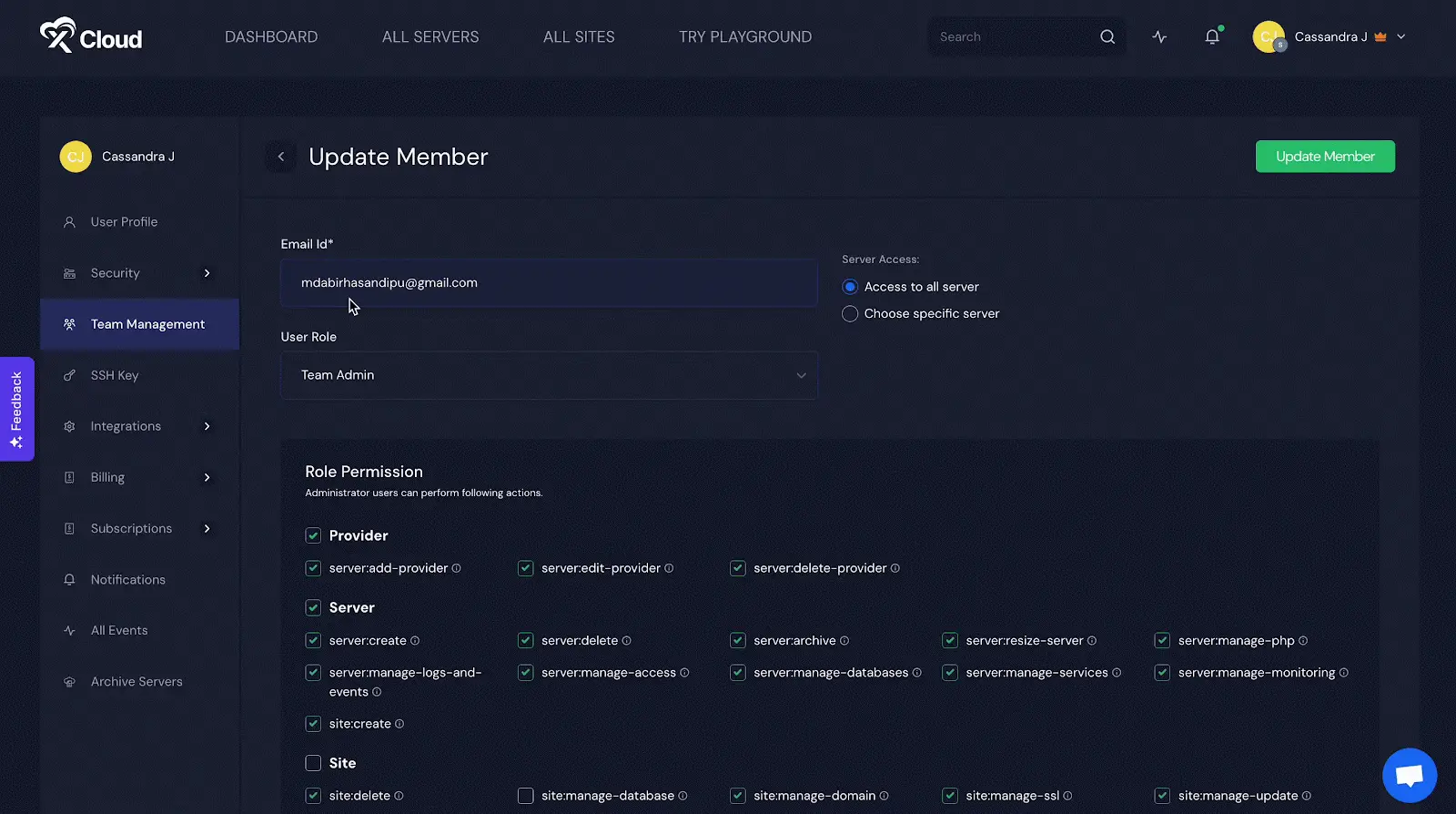
Your full server migration starts shortly.
Note: if you selected Go Live, point each domain at the new server once the copy completes. See how to set up DNS records in an xCloud server and using xCloud with Cloudflare for DNS management.
Frequently asked questions
Do I need root access to migrate between xCloud servers?
No. Because both servers are managed by xCloud, a sudo user on the source server is enough. Add one from the source server’s Sudo Users page before you start.
Will the source server or its sites be affected?
No. The migration copies files and databases to the destination and leaves the source untouched, so you can keep it running until every site is verified on the new server.
What if the sites live at another host, not on xCloud?
Use the full server migration guide for any host, which connects to the source over root SSH, or the dedicated Cloudways and RunCloud guides.
Our team will help you perform a full server migration. Please reach out to our support team for any assistance.