

Manage Multiple xCloud Teams with One API Token or MCP Connection
Updated September 25, 2026 · 8 min read
One connection. Every team you choose. Since xCloud v2.8.8, one API token or one MCP connection can be granted access to the teams you select, keep one of them as its default, and switch to another granted team on any single request. You authorize once and never reconnect to change teams.
This is for agencies, developers and operators who run more than one xCloud team: several client workspaces, a staging team and a production team, or one automation that has to see all of them.
What changed in v2.8.8
| Before | Now | |
|---|---|---|
| Teams per token or MCP connection | Exactly one | The default team plus every additional team you grant |
| Working across teams | A separate token per team, or authorizing the MCP client again for each one | One token or one connection, switched per request |
| Selecting a team on the API | Not possible | Send X-Team-Id: <team-uuid> |
| Selecting a team on MCP | Not possible | Name the team; the agent passes the optional team argument |
| A team you did not grant | Not reachable | Still not reachable: the request is refused with 403, never silently redirected to the default |
| Existing single-team tokens | Work | Still work, unchanged |
The connection never receives blanket access. The teams you grant define its boundary, and each team’s existing roles and permissions still apply on top. See team roles and permissions in xCloud for what a role allows. The release notes are in the v2.8.8 changelog.
Pick your path
The two paths share one authorization model but different mechanics, so this guide keeps them apart. Read the one you use; the boundary rules at the end apply to both.
| MCP connection | Public API token | |
|---|---|---|
| You are | Talking to an AI assistant (Claude, Cursor, Codex, Hermes and others) | Writing scripts, CI jobs or an integration that calls app.xcloud.host/api/v1 |
| You grant teams | On the browser approval screen when you connect | On the API Tokens page when you create the token |
| You pick a team per request | By naming it in the prompt; the agent passes the team argument |
With the X-Team-Id header |
| You discover granted teams | “List the teams this connection can access” (teams_index) |
GET /api/v1/teams |
| Jump to | Path A: MCP | Path B: Public API |
An MCP client that signs in with an API key instead of the browser gets its teams from the token, so follow Path B to create the token and Path A to use the teams.
Prerequisites
- An xCloud account that belongs to two or more teams.
- Permission to authorize an MCP client or create API tokens.
- For the API path: the UUID of a granted team when you want to target it, and a secure credential store for the token. xCloud shows a newly created token only once.
Path A: One MCP connection for several teams
Step 1: Tick the teams when you authorize
Connect your MCP client as described in How to Connect xCloud MCP to Your AI Agent. When you authorize in the browser, the approval screen lists your teams: the current team is always included, and you tick each additional team the connection may act on. Then choose Full access or Read-only and select Authorize.
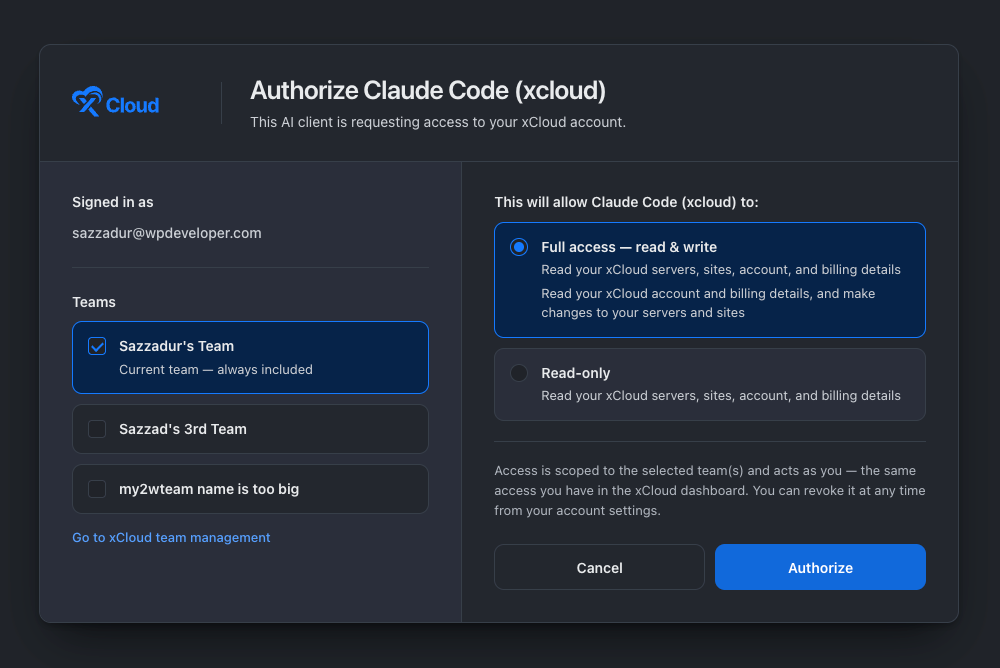
Expected result: The connection is granted exactly the teams you ticked. A team you did not tick is refused, never silently swapped for the default. To add a team later, reconnect and tick it.
Step 2: Ask which teams it can see
List the teams this xCloud connection can access.Expected result: The agent calls teams_index and answers with each granted team’s name, your role in it, and which one is the default.
Step 3: Name the team in the prompt
You never handle a UUID on this path. Say the team the way you would to a colleague, and the agent passes that team’s UUID as the optional team argument on the tool call. Omit the team and the request runs on the default.
Show the servers in Client North.Only on the Acme team: which sites have pending WordPress updates?List the teams this connection can access, then take the vulnerability count for every site on each of them and put it in one table, team by team.Expected result: Each tool call runs against exactly one team. Ask for a team the connection was not granted and the agent gets a refusal, not the default team’s data. If a site “is not found”, the usual cause is that its team was not ticked; see troubleshooting.
Path B: One API token for several teams
Step 1: Open the API Tokens page
Sign in to xCloud, then go to Account → API Tokens and select Create New Token.
Expected result: The token form opens with token name, permissions, MCP access, and team-selection controls.
Step 2: Choose permissions and grant teams
Enter a descriptive token name. Select only the API permissions the integration needs. Enable mcp:invoke separately if an AI agent will use this bearer token over MCP.
The current team is fixed as the token’s default team. Select each additional team the token may access.
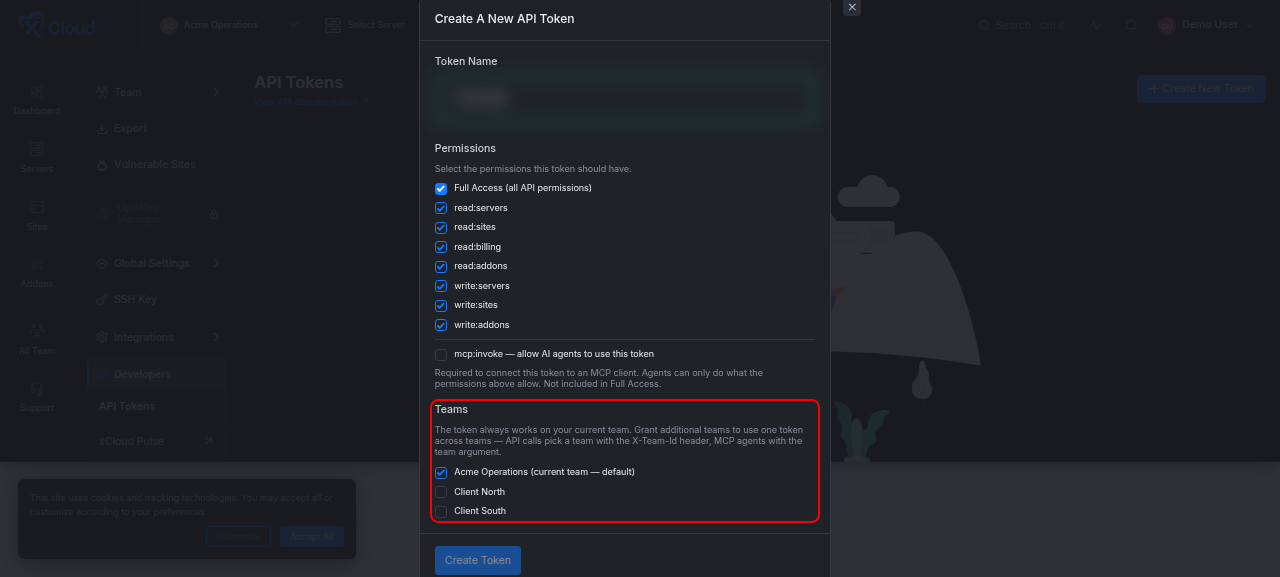
Expected result: The current team remains selected as the default, while additional teams can be enabled individually.
Security note: Full API access does not automatically include
mcp:invoke. MCP access is a separate, revocable permission.
Step 3: Create and store the token
Select Create Token, copy the generated value, and store it in your secret manager. Do not put the token in source control, screenshots, logs, or shared messages.
After creation, the API Tokens table shows the default team with a star and lists the additional teams granted to the token.
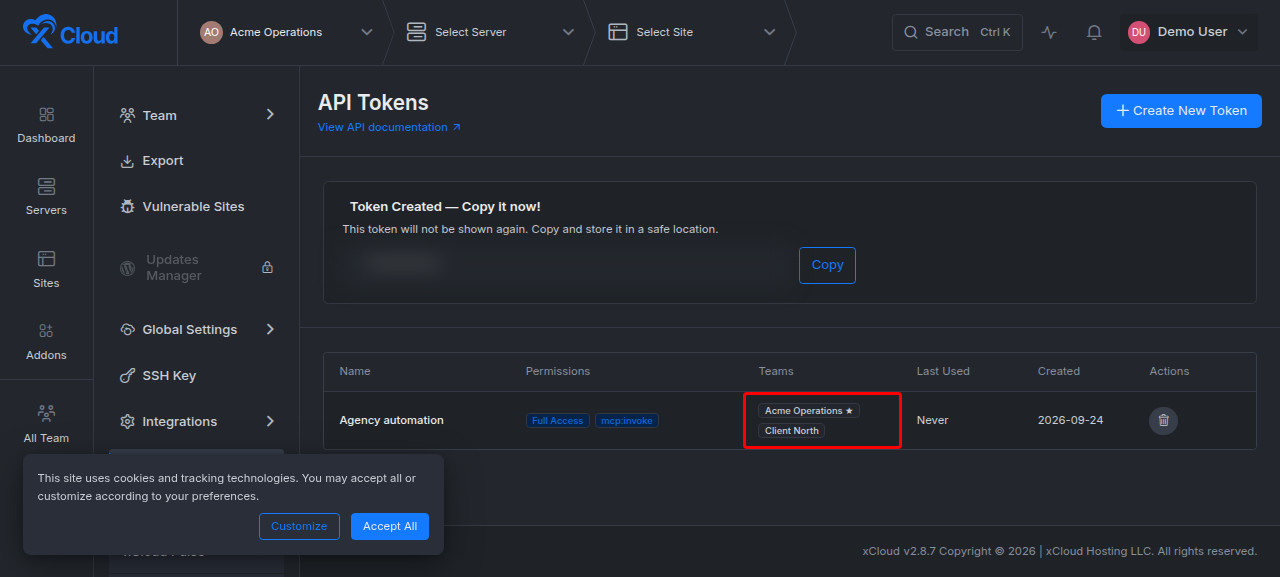
Expected result: The token row shows its permissions and teams. In the example, Acme Operations is the default team and Client North is an additional granted team.
Step 4: List the teams the token can access
Call the teams endpoint before targeting a non-default team. The response includes each granted team’s UUID, role, and default status.
curl 'https://app.xcloud.host/api/v1/teams' \
  --header 'Authorization: Bearer xc_live_xxxxxxxxxxxx' \
  --header 'Accept: application/json'
Example response:
{
  "success": true,
  "message": "Success",
  "data": [
    {
      "uuid": "a1b2c3d4-e5f6-7890-abcd-ef1234567890",
      "name": "Acme Operations",
      "role": "owner",
      "is_default": true
    },
    {
      "uuid": "b2c3d4-e5f6-7890-abcd-ef1234567890",
      "name": "Client North",
      "role": "admin",
      "is_default": false
    }
  ]
}
Expected result: The response lists only the teams granted to this token.
Step 5: Use the default team
Omit X-Team-Id to run the request against the token’s default team, exactly as single-team tokens always have.
curl 'https://app.xcloud.host/api/v1/servers' \
  --header 'Authorization: Bearer xc_live_xxxxxxxxxxxx' \
  --header 'Accept: application/json'
Expected result: xCloud returns resources from the default team, subject to the token’s scopes and the user’s role.
Step 6: Switch to another granted team
Pass the UUID returned by GET /teams in the X-Team-Id header. The header takes the UUID, never the team name.
curl 'https://app.xcloud.host/api/v1/servers' \
  --header 'Authorization: Bearer xc_live_xxxxxxxxxxxx' \
  --header 'Accept: application/json' \
  --header 'X-Team-Id: b2c3d4-e5f6-7890-abcd-ef1234567890'
Expected result: The same token runs the request against the selected granted team. You do not need to create another token or reconnect the integration. A UUID that was not granted returns 403.
The boundary rules, shared by both paths
| Rule | What it means |
|---|---|
| Explicit grants only | A connection or token can reach its default team plus the teams you explicitly granted. Nothing else, ever. |
| One team per request | Every request runs against exactly one team. A single call never combines resources from several teams; ask the agent for one team at a time, or loop over teams in your script. |
| Roles and scopes still apply | Selecting a team changes the request context. It does not bypass that team’s roles, the token’s scopes, or endpoint permissions. |
| No silent fallback | Selecting an ungranted or removed team returns 403 (API) or a refusal (MCP). xCloud never redirects to the default team. |
| Default team | Fixed when you connect or create the token: the team you were in at the time. Create the token while the intended default is current. |
| Existing tokens | Single-team tokens keep working unchanged, on their default team, with no selector needed. |
| Revoke | Both connections and tokens are listed on the API Tokens page and can be revoked in one click. |
Options and settings
| Setting | What it controls | Recommendation |
|---|---|---|
| Default team | The team used when the request has no selector | Connect or create the token while the intended default team is current |
| Additional teams | The only other teams the connection may select | Grant only the teams the integration needs |
| API scopes | Which Public API operations the token can perform | Prefer the narrowest read/write scopes that complete the task |
mcp:invoke |
Whether an AI agent may use the bearer token over MCP | Enable only for tokens intended for MCP clients |
X-Team-Id |
Team selection for one Public API request | Use a UUID returned by GET /teams |
team argument |
Team selection for one MCP tool call | Let the agent fill it from teams_index; you just name the team |
Verify the setup
Run these checks after creating the connection or token:
- Call
GET /api/v1/teamsor ask the agent to list its teams, and confirm only the intended teams appear. - Make one request without a team selector and confirm it returns the default team’s resources.
- Make one request with a granted team, by UUID or by name, and confirm it returns that team’s resources.
- Try a team that was not granted and confirm xCloud refuses it with
403. - Confirm a role-limited account still cannot perform an operation its role does not allow.
Troubleshooting
| Symptom | Likely cause | Fix |
|---|---|---|
403 after adding X-Team-Id |
The team was not granted, the grant was removed, or the user no longer belongs to the team | Call GET /teams, use a returned UUID, and review the token’s team grants |
| The agent says a site or server “is not found” | The site belongs to a team this connection was not ticked for | Ask the agent to list its teams; reconnect and tick the missing team |
| Request uses the wrong team | The selector was omitted, or the prompt did not name the team | Add X-Team-Id for API requests, or say the team in the prompt |
| MCP client cannot use a bearer token | mcp:invoke was not enabled on the token |
Create or update the token with MCP access enabled |
| Team does not appear during token creation or authorization | The account cannot grant that team in the current context | Switch to the correct xCloud context and confirm team membership |
| Operation is denied on a granted team | The token scope or the user’s team role does not allow it | Grant the required token scope or use an appropriately authorized team member |
Common mistakes
- Treating “Full Access” as permission for MCP.
mcp:invokeremains separate. - Using a team name in
X-Team-Id. The header requires the team UUID. (Naming the team is the MCP way, not the API way.) - Assuming a denied team silently falls back to the default. xCloud returns
403instead. - Granting every available team when an integration needs only one client workspace.
- Logging the token while debugging. Use the redacted placeholder
xc_live_xxxxxxxxxxxxin examples.
Frequently asked questions
Does one token automatically access every team in my account?
No. The token can access its default team plus the additional teams you explicitly grant. Nothing else.
What happens when I omit the team selector?
The request runs against the token’s or connection’s default team, exactly as single-team tokens always have.
Can the same connection switch teams for each request?
Yes. The Public API accepts the X-Team-Id header, and MCP tools accept the optional team argument. No new token, no reconnecting.
Do team roles still apply?
Yes. Selecting a team changes the request context; it does not bypass that team’s roles, the token’s scopes, or endpoint permissions.
Do existing single-team integrations need changes?
No. They keep using their default team whenever no team selector is provided.
Next steps
- Review the xCloud Public API reference and how to access the xCloud API.
- Connect an MCP client with the xCloud MCP setup guide, then see what you can ask xCloud MCP to do for prompts, including the multi-team recipe.
- Start with read-only scopes, verify default and non-default team behavior, then add write access only where the workflow requires it.
If you run into any issues with multi-team access, feel free to reach out to our support team for help.