

How To Monitor The RAM, CPU & Disk Usage Of A Site?
Updated September 27, 2026 · 1 min read
With xCloud, you can easily monitor the RAM, CPU, and disk usage of a site. Learn from the step-by-step guide below.
Step 1: Log In To Your xCloud Dashboard
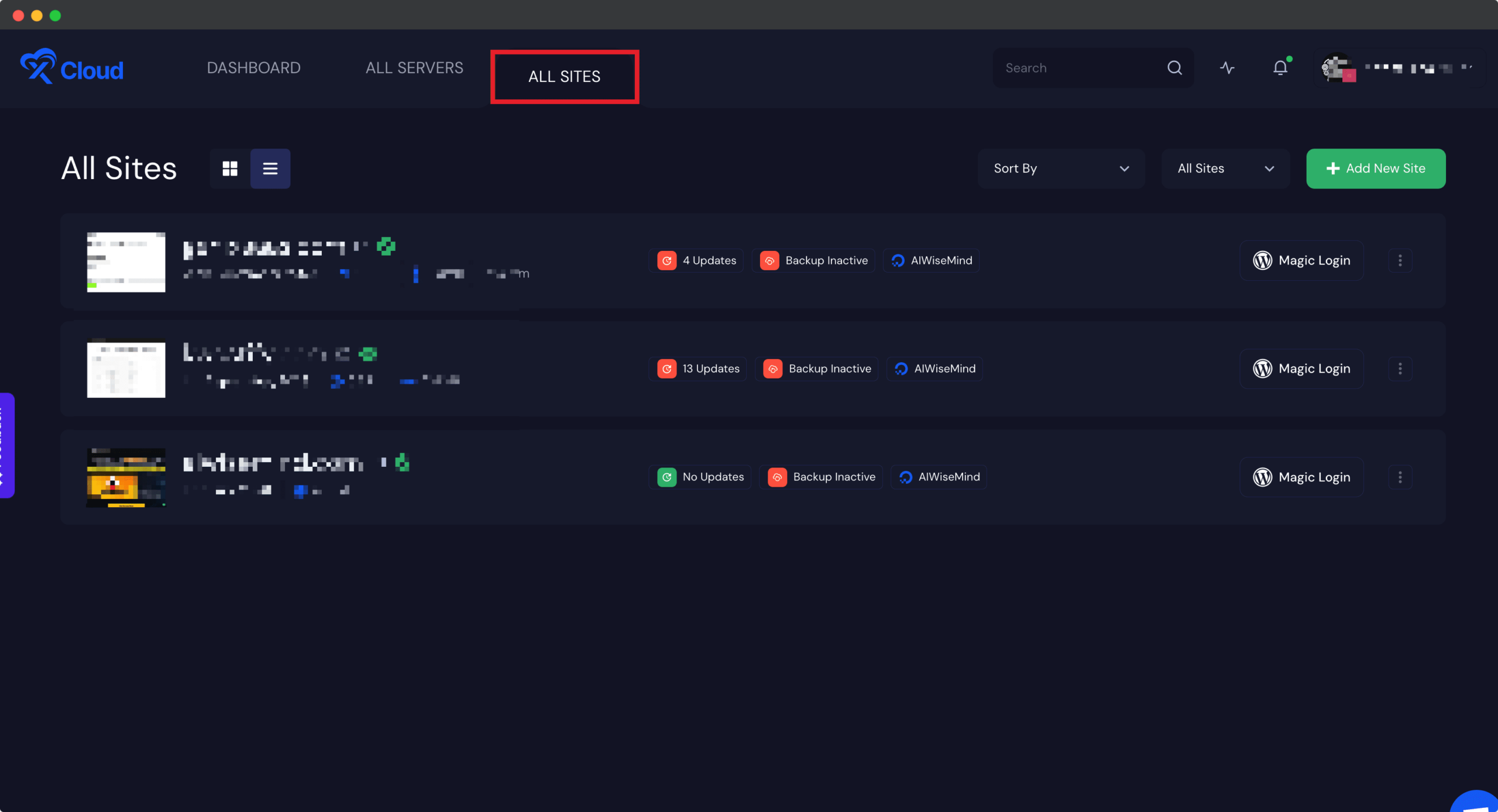
From your xCloud dashboard select the site you want to monitor or go to the ‘All Sites’ tab and click on the specific site.
Step 2: Check The Usage Status & Monitor The Ram Usage
Now, move to the ‘Monitor’ tab and you will see the complete status of the RAM, CPU, and Disk usage of that specific site.
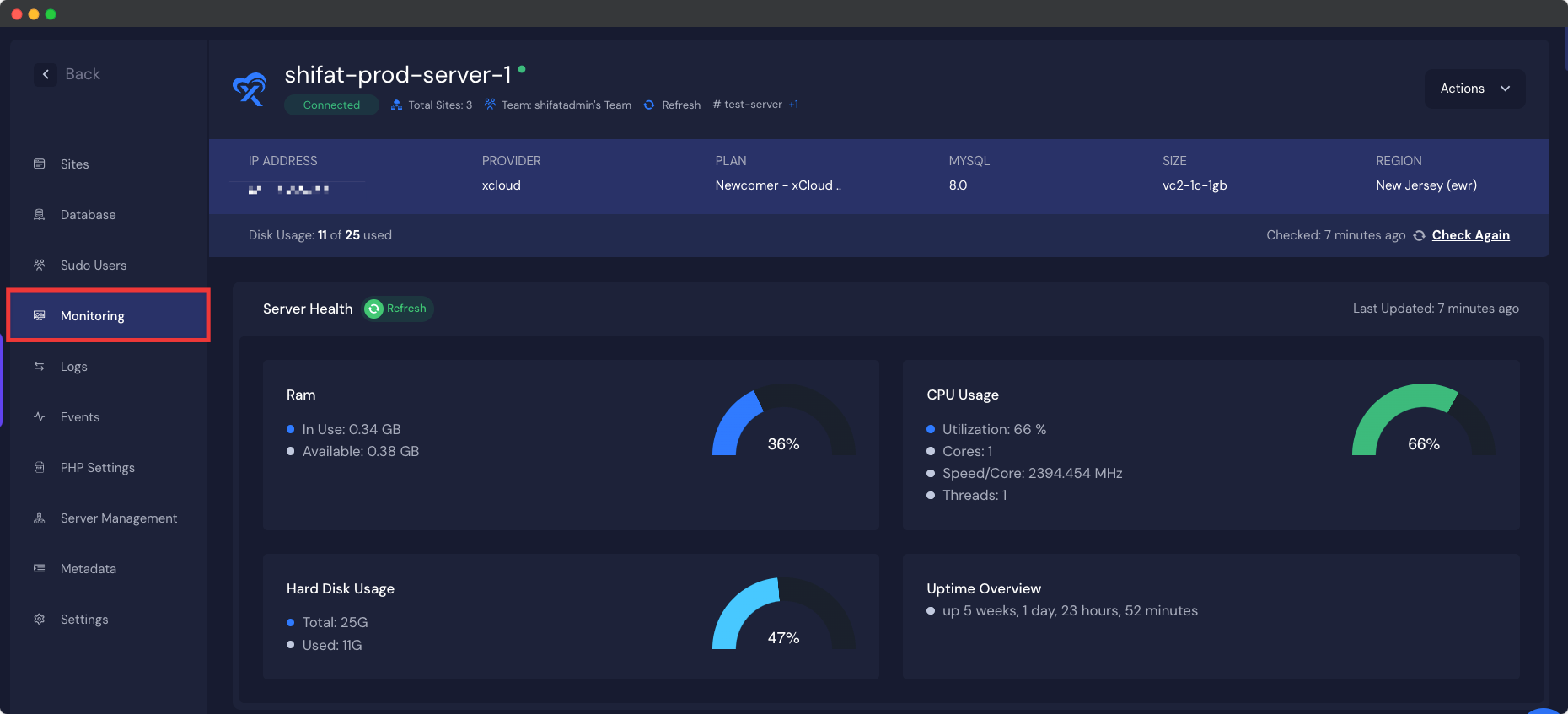
Thus, you can easily monitor the RAM, CPU, and Disk usage of a site using xCloud.
If a site is pegging the server at 100% CPU or RAM, see Server at 100% CPU: Find the Culprit Site and Stop Bot Traffic for how to confirm it’s bots and contain the damage.
Need assistance? Feel free to contact our support team.